Testimonials
What this section does
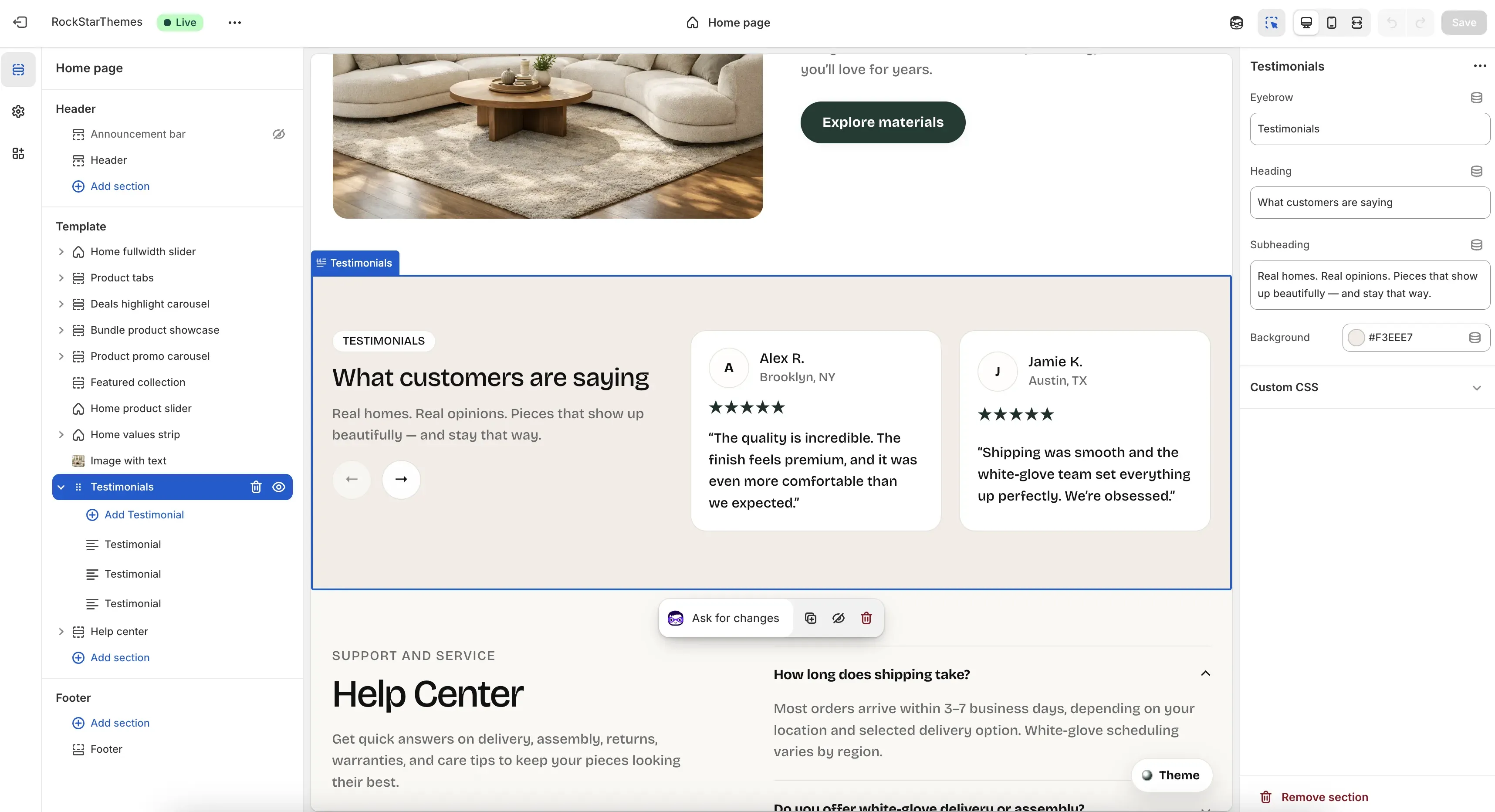
Section titled “What this section does”The Testimonials section highlights customer quotes in a horizontal card slider. It combines section intro copy with testimonial blocks containing rating, quote, author details, and optional avatar.
How to set it up
Section titled “How to set it up”- Go to Online Store -> Themes.
- Click Customize.
- Open the Home page template.
- In the left sidebar, select Testimonials.
- Add or edit Testimonial blocks, then save.
Editor areas overview
Section titled “Editor areas overview”- Left sidebar:
- Shows the section and all Testimonial blocks.
- Add Testimonial creates a new card.
- Drag blocks to reorder cards.
- Center preview:
- Shows intro content on the left and testimonial cards on the right.
- Includes previous/next controls for card navigation.
- Right settings panel:
- Section settings: Eyebrow, Heading, Subheading, Background.
- Block settings appear when a testimonial block is selected.
Key section settings explained
Section titled “Key section settings explained”- Eyebrow: small label above heading.
- Heading: main testimonial section title.
- Subheading: supporting sentence below heading.
- Background: background color for the full section.
Testimonial block settings
Section titled “Testimonial block settings”Each Testimonial block includes:
- Rating: star score from 1 to 5.
- Quote: rich text testimonial content.
- Author: customer name.
- Meta: secondary author info (for example city/location).
- Avatar: optional customer image.
Important behavior
Section titled “Important behavior”- The section renders only when at least one testimonial block exists.
- On desktop, the slider advances by two cards per step.
- On small screens, it switches to one card per step.
- If no avatar is set, the card shows an initial-based fallback badge.
Common tasks
Section titled “Common tasks”Add a new testimonial
Section titled “Add a new testimonial”- Select Testimonials.
- Click Add Testimonial.
- Set rating, quote, author, and meta.
- Optionally add avatar.
- Save.
Reorder testimonials
Section titled “Reorder testimonials”- Drag testimonial blocks in the left sidebar.
- Confirm card order in preview.
- Save.
Replace avatars with initials
Section titled “Replace avatars with initials”- Open a testimonial block.
- Remove Avatar image.
- Save.
- Keep quote lengths similar for cleaner card rhythm.
- Use consistent location format in Meta (for example
City, ST). - Keep ratings credible and varied when needed.
- Check readability of quote text against chosen background color.
Why is the section not showing on the storefront?
Section titled “Why is the section not showing on the storefront?”The section requires at least one testimonial block to render.
Why does one card show a letter instead of a photo?
Section titled “Why does one card show a letter instead of a photo?”That block has no avatar image, so the theme shows an initial fallback.
Why does the slider show fewer cards on mobile?
Section titled “Why does the slider show fewer cards on mobile?”The section is responsive and switches to one card per view on smaller screens.
Related guides
Section titled “Related guides”- Image With Text Documentation
- Home Values Strip Documentation
- Home Product Slider Documentation
- Theme Documentation
Publish checklist
Section titled “Publish checklist”- Confirm section copy (eyebrow, heading, subheading).
- Confirm each testimonial block rating and quote.
- Verify author/meta consistency.
- Validate mobile card behavior.
- Save and publish.
Need help?
Section titled “Need help?”If you still need help, contact support via the Contact page.