Mega Menu
What this section does
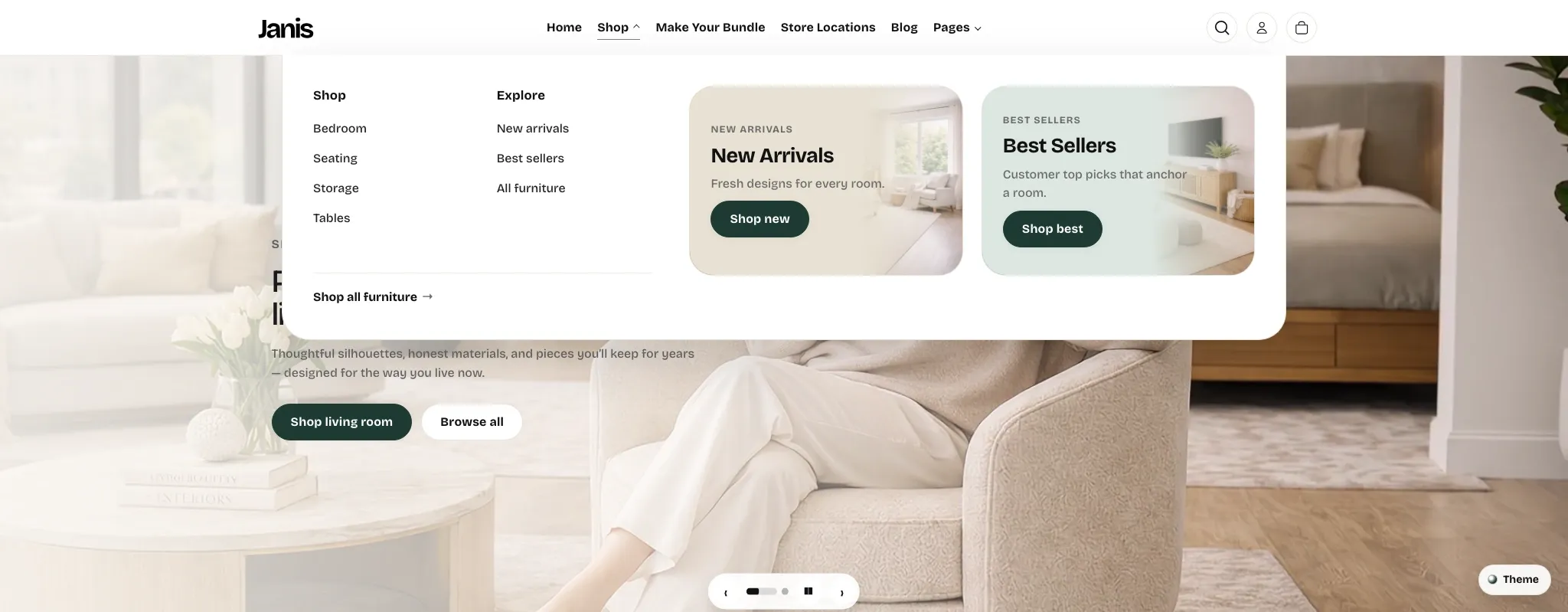
Section titled “What this section does”This section controls the desktop flyout navigation layout, including menu columns, taxonomy links, and optional promotional cards.
How to set it up
Section titled “How to set it up”- Go to Online Store -> Themes.
- Click Customize.
- Open the Header section.
- Use these controls in Header settings:
MenuEnable flyout (mega) menuMega menu column 1 headingMega menu column 2 headingMega menu heading for single links (only when using 3rd-level menus)Mega menu "view all" labelShow promo cards in mega menuShow promo cards only for menu item title (optional)Promo card 1andPromo card 2fields
Core Structure
Section titled “Core Structure”The mega menu has 3 zones:
- Column 1: taxonomy/category links.
- Column 2: discovery links (for Shop this includes New arrivals, Best sellers, All furniture).
- Right side cards: promotional cards with image, copy, and CTA.
Edit Existing Menu Links
Section titled “Edit Existing Menu Links”For top-level items and their child links:
- Go to Online Store -> Navigation -> Main menu.
- Edit any top-level item (for example,
Shop,Pages,Blog). - Edit nested links by dragging/indenting menu items.
- Save, then refresh Theme Customizer preview.
Add A New Mega Menu
Section titled “Add A New Mega Menu”To create a new flyout for a new top-level item:
- Go to Navigation -> Main menu.
- Add a top-level item (example:
Collections). - Add child links under that item.
- Keep Header -> Enable flyout (mega) menu enabled.
- Save.
Behavior:
- Any top-level item with children can render as a mega-style flyout.
- If child items have their own children (3rd level), each child group becomes a separate mega column.
- Child links without grandchildren are grouped under the
Mega menu heading for single linkslabel.
Disable Promo Cards (Config Cards)
Section titled “Disable Promo Cards (Config Cards)”To disable all right-side promo cards:
- Open Header settings.
- Turn off Show promo cards in mega menu.
- Save.
To disable promo cards only for specific menus:
- Keep promo cards enabled.
- Set Show promo cards only for menu item title to the exact top-level label (example:
Shop). - Menus with different titles will render without cards.
To disable only one promo card:
- In Header settings, open Promo card 1 or Promo card 2.
- Clear its Heading.
- Save.
Configure Promo Card Content
Section titled “Configure Promo Card Content”For each promo card you can manage:
- Image
- Background color
- Eyebrow text
- Heading
- Body text
- Button label
- Button link
Shop-Specific Logic
Section titled “Shop-Specific Logic”The Shop mega menu has additional behavior in this theme:
- Column 1 pulls category taxonomy from Theme settings -> Taxonomy -> Primary taxonomy menu.
- If that taxonomy menu is empty, the theme falls back to
Shopchild links fromMain menu. - If both are empty, the theme uses a default set: Bedroom, Seating, Storage, Tables.
- Column 2 includes links to New arrivals, Best sellers, and All furniture.
- The bottom “view all” row text comes from Mega menu “view all” label.
Full Header Functions Related To Navigation
Section titled “Full Header Functions Related To Navigation”These settings affect navigation behavior in and around the mega menu:
Menu: main source for top-level and nested nav structure.Enable flyout (mega) menu: switch between mega layout and simple dropdown layout.Bundle builder page+Menu label: controls the bundle link destination and label.Store locations page+Menu label: controls the store locations link destination and label.Mega menu column 1 heading: left column heading text.Mega menu column 2 heading: second column heading text.Mega menu heading for single links: heading used for ungrouped links in 3rd-level menu structures.Mega menu "view all" label: bottom call-to-action label (clear to hide).Show promo cards in mega menu: global card on/off.Show promo cards only for menu item title: title filter for card visibility.
Recommended Merchant Workflow
Section titled “Recommended Merchant Workflow”- Update navigation links first in Navigation.
- Update mega headings and card settings in Header.
- Validate desktop and mobile navigation behavior in Theme Customizer.
- Publish only after checking all collection and page links are valid.
- Build link hierarchy in Navigation first, then style it in Header settings.
- Use promo cards only where they add value; too many visual CTAs reduce menu clarity.
- Keep column headings short so scanability stays strong on wide menus.
Why are promo cards not showing for some menu items?
Section titled “Why are promo cards not showing for some menu items?”If Show promo cards only for menu item title is set, cards render only for the exact matching top-level label.
Why did my first column links change unexpectedly?
Section titled “Why did my first column links change unexpectedly?”Column 1 can pull from Theme settings -> Taxonomy -> Primary taxonomy menu. If that menu changes, mega menu category links update too.
Can I use mega menu without promo cards?
Section titled “Can I use mega menu without promo cards?”Yes. Keep Enable flyout (mega) menu on, and disable Show promo cards in mega menu.
Related guides
Section titled “Related guides”Need help?
Section titled “Need help?”If you still need help, contact support via the Contact page.