Bundle Product Showcase
What this section does
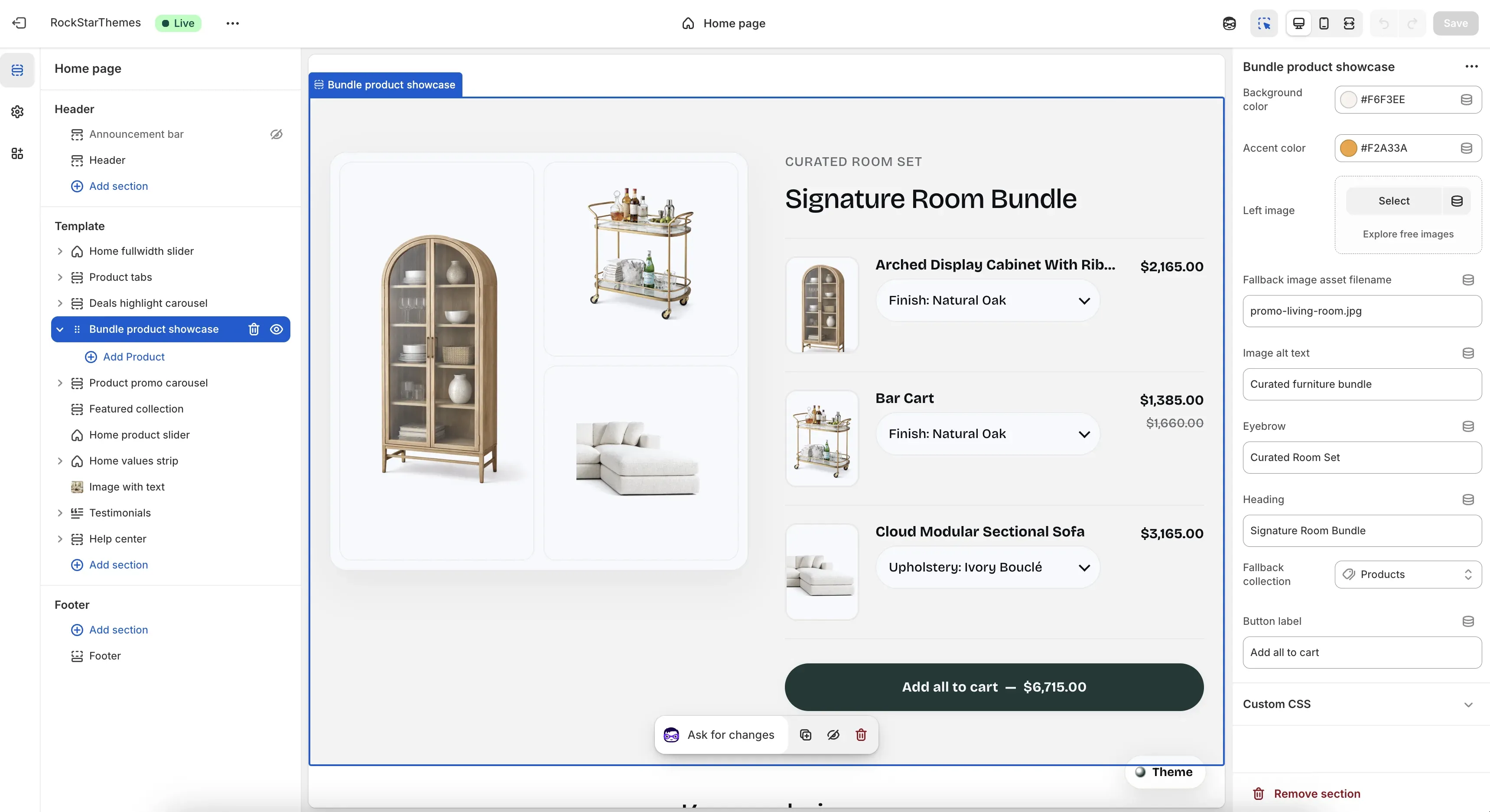
Section titled “What this section does”The Bundle product showcase section creates a curated multi-product bundle on the homepage. It combines a left-side product collage with a right-side bundle panel where customers can review options and add the full set to cart.
How to set it up
Section titled “How to set it up”- Go to Online Store -> Themes.
- Click Customize.
- Open the Home page template.
- In the left sidebar, select Bundle product showcase.
- Add or edit Product blocks, then save.
Editor areas overview
Section titled “Editor areas overview”- Left sidebar:
- Shows the selected section and its Product blocks.
- Add Product adds a product block (up to 3).
- Drag blocks to reorder bundle items.
- Center preview:
- Shows the left collage and the right bundle list.
- Displays product rows, prices, variant selectors, and the final bundle CTA.
- Right settings panel:
- Section-level controls such as Background color, Accent color, Left image, and content labels.
- Fallback controls for image and collection behavior.
Key section settings explained
Section titled “Key section settings explained”- Background color: section background behind collage and bundle panel.
- Accent color: accent tone used by visual details in this section.
- Left image: manual image fallback when product media is unavailable.
- Fallback image asset filename: asset-level fallback if no collage image can be generated.
- Image alt text: accessibility text for the left media area.
- Eyebrow: small label above the main heading.
- Heading: section headline on the bundle panel.
- Fallback collection: auto-fill source when fewer than 3 product blocks are assigned.
- Button label: text for the bundle add-to-cart CTA.
Product block settings
Section titled “Product block settings”Each Product block includes one key field:
- Product: selects the product to include in the bundle.
Important behavior:
- This section supports up to 3 product blocks.
- If fewer than 3 products are selected, remaining slots can be filled from Fallback collection.
- Duplicate products are filtered out automatically.
Common tasks
Section titled “Common tasks”Build a fixed 3-product bundle
Section titled “Build a fixed 3-product bundle”- Add three Product blocks.
- Assign one product in each block.
- Reorder blocks to control display order.
- Save.
Use collection fallback for auto-fill
Section titled “Use collection fallback for auto-fill”- Add one or two Product blocks.
- Set Fallback collection.
- Verify the section fills remaining slots automatically.
- Save.
Override the collage fallback image
Section titled “Override the collage fallback image”- Set Left image with your preferred visual.
- Optionally set Fallback image asset filename for asset-based fallback behavior.
- Confirm alt text in Image alt text.
- Save.
- Keep all bundle items in a similar style/price tier to improve conversion clarity.
- Use short headings so the bundle panel remains clean on tablet widths.
- Check variant availability for each product before publishing.
- Preview on mobile to confirm row spacing and thumb readability.
Why are products showing that I did not add manually?
Section titled “Why are products showing that I did not add manually?”When fewer than three blocks are configured, the section fills missing slots from Fallback collection.
Why can’t I add more than three products?
Section titled “Why can’t I add more than three products?”The section is intentionally limited to three product blocks for layout and bundle focus.
Why is the left image not the one I uploaded?
Section titled “Why is the left image not the one I uploaded?”If product collage media is available, the section can prioritize product imagery. Use explicit product media and check fallback image settings for consistent output.
Related guides
Section titled “Related guides”- Product Tabs Documentation
- Deals Highlight Carousel Documentation
- Home Fullwidth Slider Documentation
- Theme Documentation
Publish checklist
Section titled “Publish checklist”- Confirm selected products and order.
- Validate fallback collection behavior.
- Check variant selectors and price display.
- Verify CTA label and test add-to-cart flow.
- Save and publish.
Need help?
Section titled “Need help?”If you still need help, contact support via the Contact page.