Image With Text
What this section does
Section titled “What this section does”The Image with text section pairs one visual panel with supporting copy and a single CTA. It is typically used for material story, craftsmanship messaging, or category-level promotion.
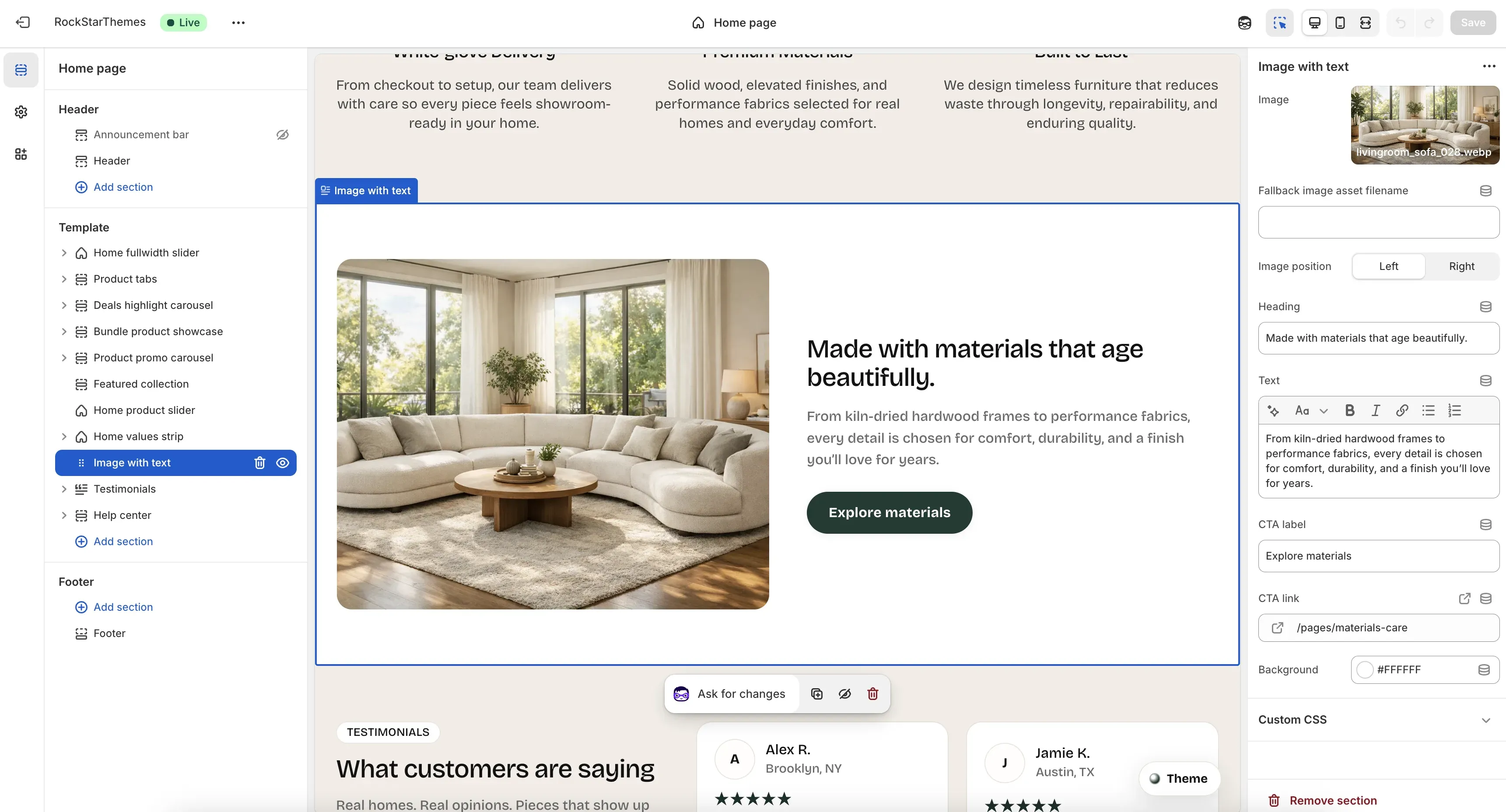
How to set it up
Section titled “How to set it up”- Go to Online Store -> Themes.
- Click Customize.
- Open the Home page template.
- In the left sidebar, select Image with text.
- Configure media, copy, CTA, and background settings, then save.
Editor areas overview
Section titled “Editor areas overview”- Left sidebar:
- Shows the selected Image with text section.
- Center preview:
- Shows two-column layout with image and content panel.
- Reflects side switching, copy updates, and button state in real time.
- Right settings panel:
- Section controls: Image, Fallback image asset filename, Image position, Heading, Text, CTA label, CTA link, Background.
Key settings explained
Section titled “Key settings explained”- Image: primary visual for the section.
- Fallback image asset filename: theme-asset fallback used when no image picker value is set.
- Image position: places media on left or right side.
- Heading: main text headline.
- Text: rich text body content.
- CTA label: button text.
- CTA link: target URL for CTA.
- Background: section background color.
Important behavior
Section titled “Important behavior”- If Image is set, it is always used first.
- If Image is empty and fallback filename is valid, that asset is used.
- If neither media source is available, a placeholder panel appears.
- If CTA label is empty, no button is rendered.
- If CTA label exists but CTA link is empty, CTA falls back to the all-products collection URL.
Common tasks
Section titled “Common tasks”Switch layout side
Section titled “Switch layout side”- Change Image position to Left or Right.
- Confirm balance of media and text in preview.
- Save.
Use a theme asset as backup image
Section titled “Use a theme asset as backup image”- Set Fallback image asset filename to an asset file in your theme.
- Leave Image empty to test fallback behavior.
- Save.
Disable CTA without removing copy
Section titled “Disable CTA without removing copy”- Clear CTA label.
- Keep heading/text content unchanged.
- Save.
- Keep heading short to avoid multi-line crowding on narrower desktop widths.
- Use body copy length that fits in 2-4 lines on desktop when possible.
- Recheck mobile stacking after switching image side.
- Keep image subject clear near center to avoid awkward crops.
Why is my fallback image not showing?
Section titled “Why is my fallback image not showing?”Verify the filename matches an existing file in your theme assets and includes correct extension.
Why does the CTA still open a page when CTA link is blank?
Section titled “Why does the CTA still open a page when CTA link is blank?”When label is present and link is empty, the theme uses the all-products URL as default.
Why did the button disappear?
Section titled “Why did the button disappear?”The button only renders when CTA label contains text.
Related guides
Section titled “Related guides”- Home Values Strip Documentation
- Home Product Slider Documentation
- Bundle Product Showcase Documentation
- Theme Documentation
Publish checklist
Section titled “Publish checklist”- Confirm image source and fallback behavior.
- Confirm image side alignment with adjacent sections.
- Verify heading/text readability and spacing.
- Validate CTA label/link behavior.
- Save and publish.
Need help?
Section titled “Need help?”If you still need help, contact support via the Contact page.