Store Locations
What this section does
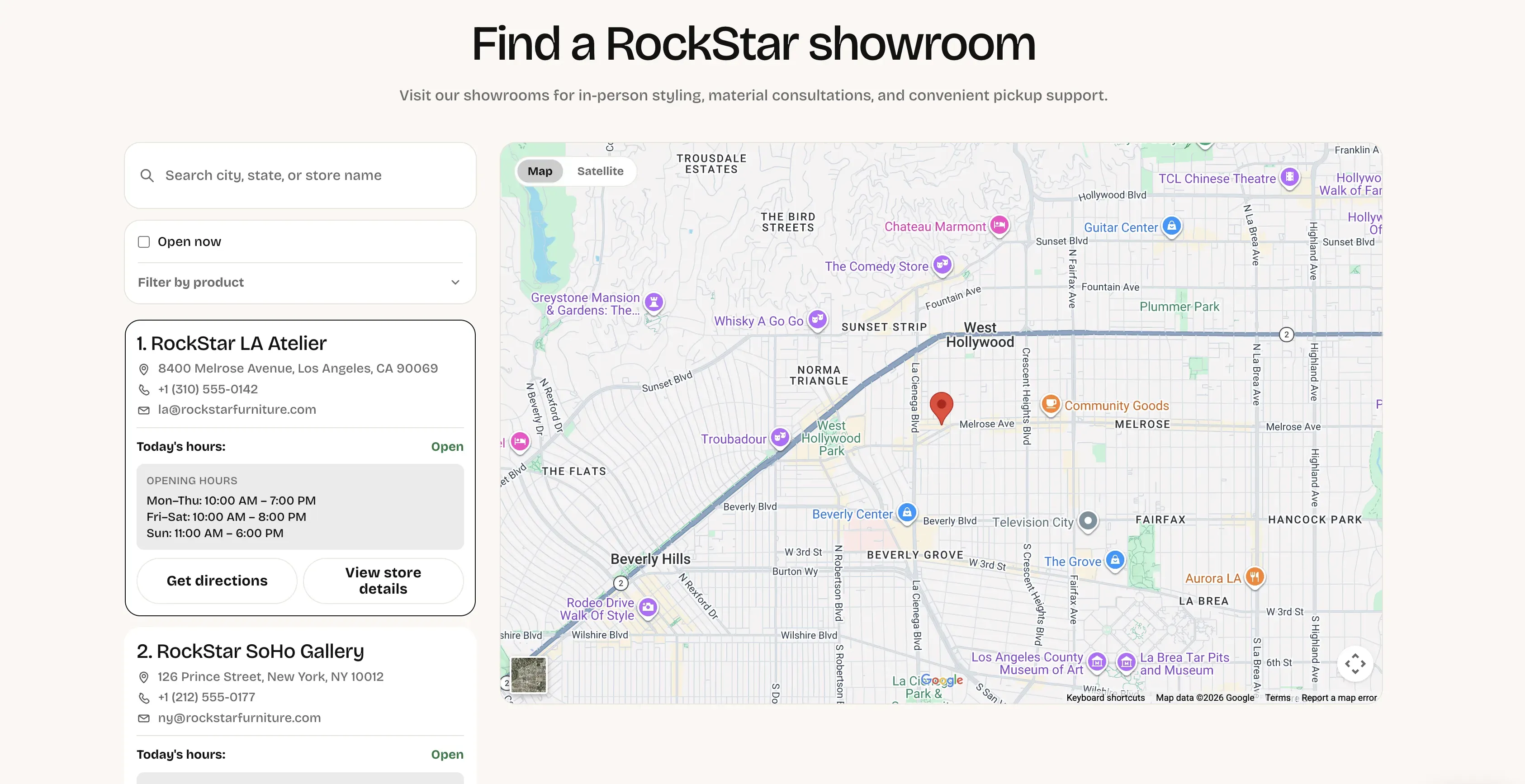
Section titled “What this section does”The Store Locations page gives shoppers a full store locator experience:
- Search by city, state, store name, phone, email, product keywords, or hours text.
- Filter by Open now.
- Filter stores by products available in each showroom.
- See matching stores in a list and on an embedded map.
- Open directions or a store detail page from each store card.
How to set it up
Section titled “How to set it up”- Go to Online Store -> Themes.
- Click Customize.
- Open the page using the page.store-locations template.
- Select Page - store locations.
- Configure page-level labels and text.
- Add and configure Store blocks.
- Save.
If you do not have a storefront page using this template yet:
- Create a page in Online Store -> Pages.
- Assign template page.store-locations.
- Save and preview.
Editor areas overview
Section titled “Editor areas overview”- Left sidebar:
- Contains the section and all Store blocks.
- Use Add block -> Store to add locations.
- Drag blocks to reorder store cards.
- Center preview:
- Shows live search/filter behavior, store list, and map updates.
- Right settings panel:
- Page-level text and label controls.
- Per-store block settings for contact info, status, products, links, and coordinates.
Key section settings explained
Section titled “Key section settings explained”- Search placeholder: helper text in the main search input.
- Open now filter label: label for the open-status checkbox.
- Product filter label: title for the product filter dropdown.
- Product search placeholder: placeholder in product filter search.
- Product search empty text: shown when no product filter options match search.
- Selected products label: heading above selected product filter chips.
- Clear filters button label: button text shown when filters are active.
- No results text: shown when current filters return zero stores.
- Directions button label: text used on each card directions action.
- Store details button label: text used on each card details action.
- Empty state text: shown when no Store blocks exist yet.
Store block settings explained
Section titled “Store block settings explained”For each Store block, configure:
- Store name, Address, City / state, Phone, Email.
- Hours label and Opening hours.
- Status (
OpenorClosed) used by the Open now filter. - Available products (comma or line-separated) used by product filtering.
- Directions URL for map apps.
- Store details page URL for the detail page button.
- Latitude and Longitude for precise map pin placement.
Important behavior
Section titled “Important behavior”- Open now is manual: it depends on each store block’s Status, not real-time clock logic.
- Product filter appears only when product data exists: if no stores have Available products, the product filter is hidden.
- Map source priority: the map uses latitude/longitude when available; otherwise it falls back to address + store name query.
- Active store sync: selecting a visible card updates the map location immediately.
- Auto-selection after filtering: when filters change, the first visible store becomes active.
- Store details URL fallback: if details URL is blank, the theme derives a
/pages/<handle>style path from store name; create matching page handles to avoid broken links.
How shoppers use it
Section titled “How shoppers use it”- Enter a location or store keyword in search.
- Turn on Open now to show open locations only.
- Use Filter by product to narrow by available showroom inventory.
- Click a store card to focus it on the map.
- Use Get directions or View store details.
- Switch map mode between Map and Satellite.
Common tasks
Section titled “Common tasks”Add a new showroom
Section titled “Add a new showroom”- In the section, click Add block -> Store.
- Fill contact, hours, status, links, and coordinates.
- Save and verify card + map pin.
Enable accurate product filtering
Section titled “Enable accurate product filtering”- Add product names in Available products for every store.
- Keep naming consistent across stores.
- Save and test product filter search and selection.
Fix wrong map pin location
Section titled “Fix wrong map pin location”- Update Latitude and Longitude in the store block.
- Save and re-open the card in preview.
- Confirm map pin now matches the showroom.
Prevent details-page dead links
Section titled “Prevent details-page dead links”- Set Store details page URL explicitly to a valid page.
- If left blank, ensure derived handle pages exist.
- Save and test each View store details button.
- Keep status updated daily if you use the Open now filter.
- Use consistent product naming so merchants and shoppers can find items faster.
- Keep opening hours format consistent across stores for readability.
- Fill coordinates for every store for the most reliable map behavior.
Why does Open now show a store that is currently closed in real life?
Section titled “Why does Open now show a store that is currently closed in real life?”Because this filter uses the block Status setting, not current time calculations.
Why is the product filter missing?
Section titled “Why is the product filter missing?”No store currently has values in Available products.
Why does map position look wrong for one store?
Section titled “Why does map position look wrong for one store?”That store likely has incorrect or missing Latitude/Longitude values.
Why does View store details open a missing page?
Section titled “Why does View store details open a missing page?”The details URL is invalid, or a fallback handle was generated for a page that does not exist.
Related guides
Section titled “Related guides”Publish checklist
Section titled “Publish checklist”- Confirm page uses
page.store-locationstemplate. - Validate all store contact details and links.
- Validate status values for each store.
- Test search, open-now filter, and product filter.
- Verify each map pin and each details page URL.
- Test desktop and mobile behavior before publishing.
Need help?
Section titled “Need help?”If you still need help, contact support via the Contact page.