Blog Carousel
What this section does
Section titled “What this section does”The Product promo carousel on the Blog template is the featured story band at the top of the page. It lets merchants pin editorial highlights before the main article grid.
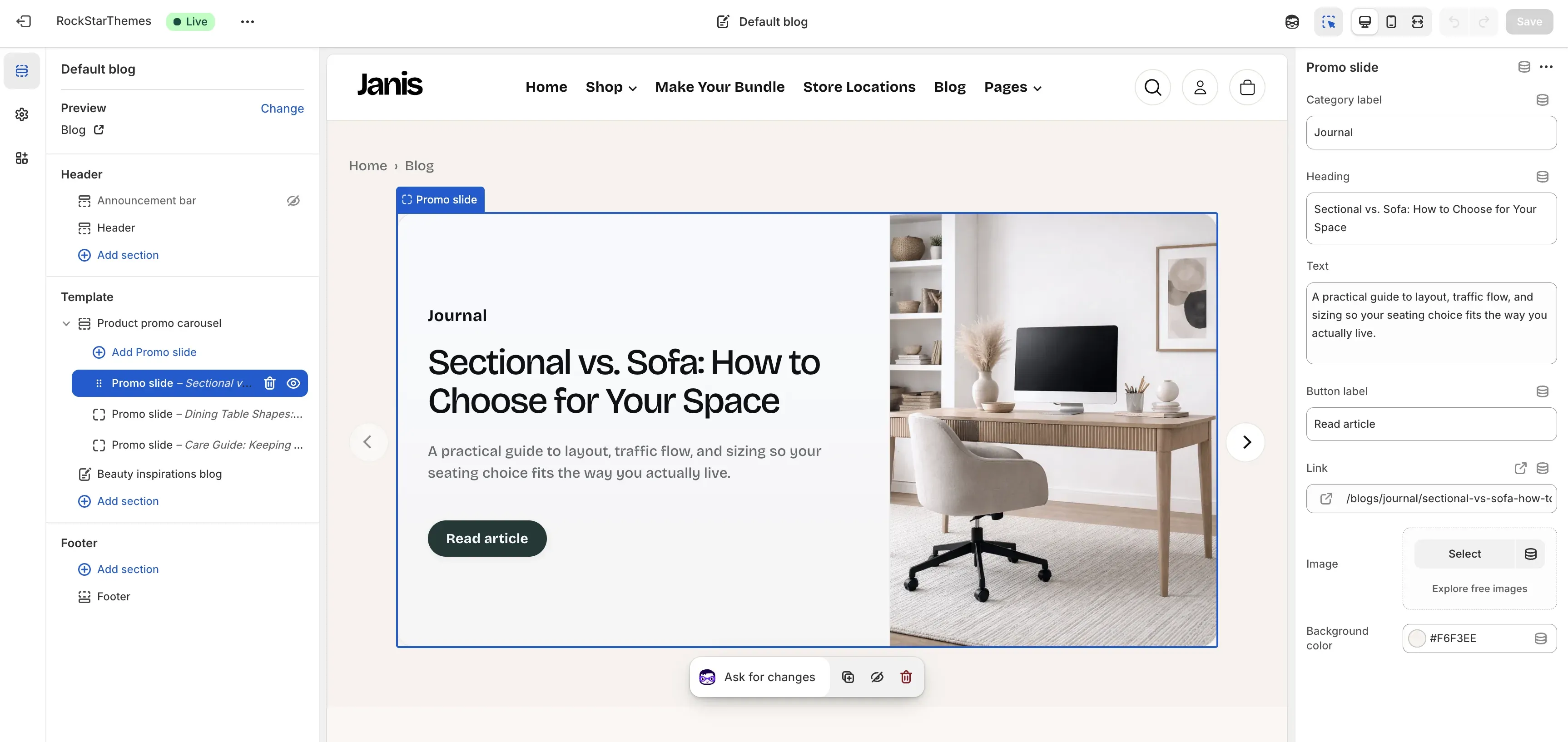
Where it appears
Section titled “Where it appears”- Template: Blog (
templates/blog.json). - Section name in editor: Product promo carousel.
- Block type: Promo slide.
How to set it up
Section titled “How to set it up”- Go to Online Store -> Themes.
- Click Customize.
- Open the Blog template.
- Select Product promo carousel.
- Add or edit Promo slide blocks.
- Save.
Section controls (important)
Section titled “Section controls (important)”When the section itself is selected:
- Section background: outer wrapper background color.
- Carousel background: component container background.
- Heading: optional section title above slides.
- Subheading: optional supporting copy.
Promo slide controls (important)
Section titled “Promo slide controls (important)”When a single Promo slide block is selected:
- Category label: short top label (for example, Journal).
- Heading: primary slide title.
- Text: supporting summary copy.
- Button label: CTA text.
- Link: destination URL (usually a blog article URL).
- Image: featured visual for the slide.
- Background color: per-slide content panel color.
Blog-specific behavior
Section titled “Blog-specific behavior”- Blog breadcrumbs (
Home > Blog) are shown automatically in this template context. - Slide layout alternates left/right on desktop by slide index.
- Arrows and dots show only when there is more than one slide.
- If image is empty and link matches supported blog paths, fallback assets can be used.
- Maximum slide blocks: 12.
Common merchant tasks
Section titled “Common merchant tasks”Add a featured article slide
Section titled “Add a featured article slide”- Select Product promo carousel.
- Click Add Promo slide.
- Fill Category label, Heading, Text, Link, and Image.
- Save and verify storefront output.
Reorder slides
Section titled “Reorder slides”- Drag Promo slide blocks in the left sidebar.
- Confirm order in preview.
- Save.
Remove a slide
Section titled “Remove a slide”- Open the slide block menu.
- Remove the block.
- Save.
- Keep headings short so the split layout stays balanced on tablet.
- Keep text length similar between slides to avoid height jumps.
- Point slide links to published articles only.
- Use consistent image framing across all slides.
Why is only one slide showing with no dots?
Section titled “Why is only one slide showing with no dots?”Dots/arrows are hidden when only one slide exists.
Why is the slide image not what I uploaded?
Section titled “Why is the slide image not what I uploaded?”If a slide image is empty, fallback logic may resolve an asset from the link pattern.
Why did the slide text panel move sides?
Section titled “Why did the slide text panel move sides?”Desktop layout alternates per slide index by design.