Home Values Strip
What this section does
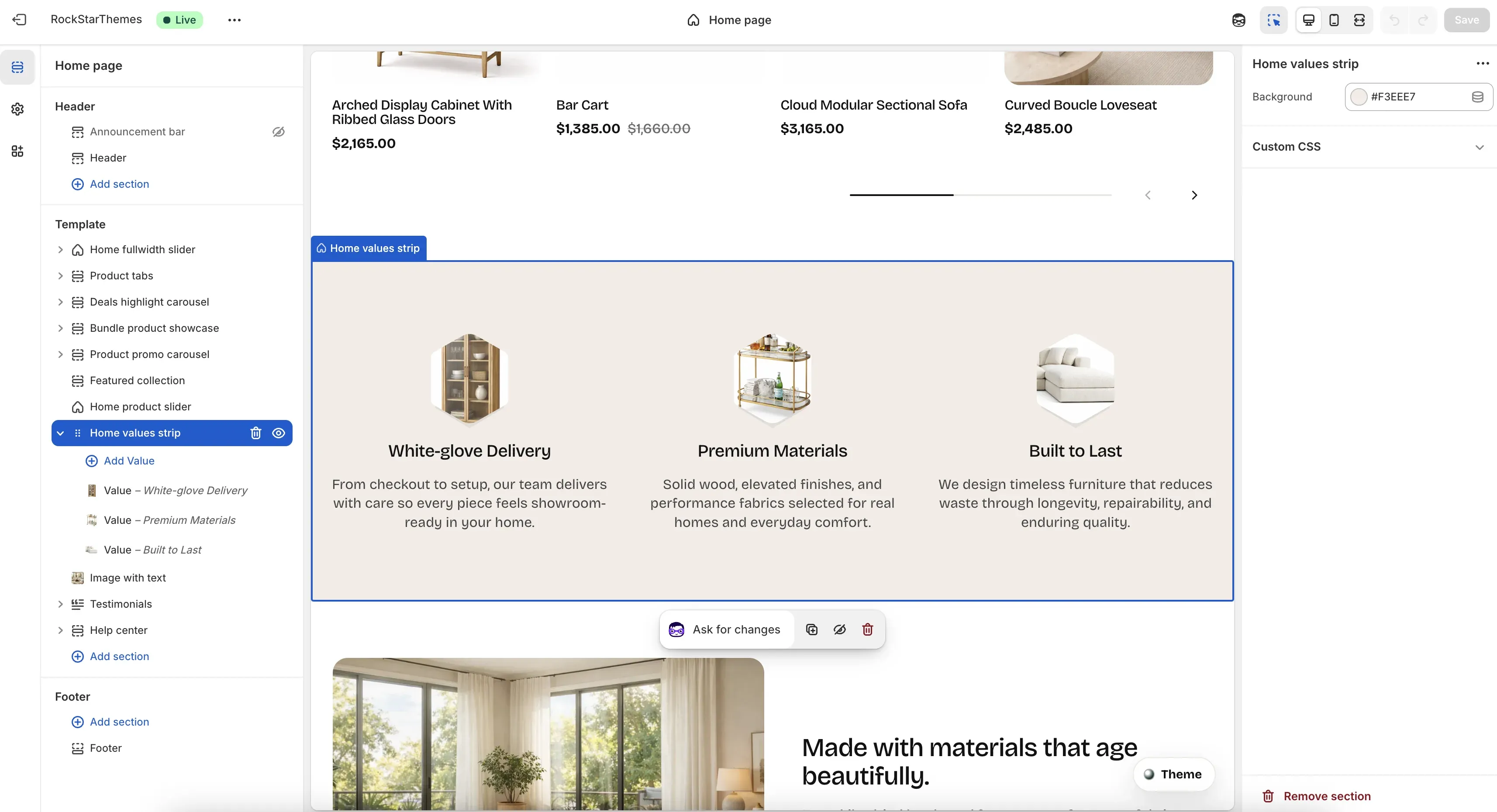
Section titled “What this section does”The Home values strip section presents brand value highlights in a three-column strip. Each value block supports an icon-style image area, heading, and short supporting text.
How to set it up
Section titled “How to set it up”- Go to Online Store -> Themes.
- Click Customize.
- Open the Home page template.
- In the left sidebar, select Home values strip.
- Add or edit Value blocks, then save.
Editor areas overview
Section titled “Editor areas overview”- Left sidebar:
- Shows the section plus each Value block.
- Add Value creates a new value item.
- Drag blocks to reorder values.
- Center preview:
- Shows icon shape, heading, and text for each value item.
- Reflects background and block copy updates in real time.
- Right settings panel:
- Section-level control: Background.
- Block-level controls appear when a specific Value block is selected.
Key section setting explained
Section titled “Key section setting explained”- Background: sets strip background color behind all value items.
Value block settings
Section titled “Value block settings”Each Value block includes:
- Product image source: pulls image from selected product when no manual image override is set.
- Image override (optional): replaces product-derived image for full control.
- Heading: value title.
- Text: supporting value description.
Important behavior
Section titled “Important behavior”- If Image override is set, it takes priority.
- If no override is set and a product is selected, product featured image is used.
- If product is not selected, the section can fall back to products from the all-products collection by position.
- If no usable image exists, a placeholder is shown.
Common tasks
Section titled “Common tasks”Add a new value item
Section titled “Add a new value item”- Select Home values strip.
- Click Add Value.
- Set heading and text.
- Set product source or image override.
- Save.
Reorder value items
Section titled “Reorder value items”- Drag Value blocks in the left sidebar.
- Confirm order in preview.
- Save.
Force custom icon imagery
Section titled “Force custom icon imagery”- Open a Value block.
- Set Image override (optional).
- Keep Product image source as fallback if desired.
- Save.
- Keep value headings short and parallel in style.
- Keep text length balanced across items for cleaner visual rhythm.
- Use similarly styled images to avoid visual inconsistency in the icon row.
- Validate readability of text color against chosen background.
Why is a different image showing than expected?
Section titled “Why is a different image showing than expected?”Check whether Image override is set. If not, image can come from selected product source or fallback logic.
Why does one value show a placeholder?
Section titled “Why does one value show a placeholder?”That block has no valid image override and no available product image from selected/fallback source.
Why do values stack on mobile?
Section titled “Why do values stack on mobile?”The section is responsive and shifts from multi-column to single-column layout at smaller widths.
Related guides
Section titled “Related guides”Publish checklist
Section titled “Publish checklist”- Confirm value order and copy.
- Confirm each icon image source.
- Check background contrast and mobile layout.
- Save and publish.
Need help?
Section titled “Need help?”If you still need help, contact support via the Contact page.