Product Promo Carousel
What this section does
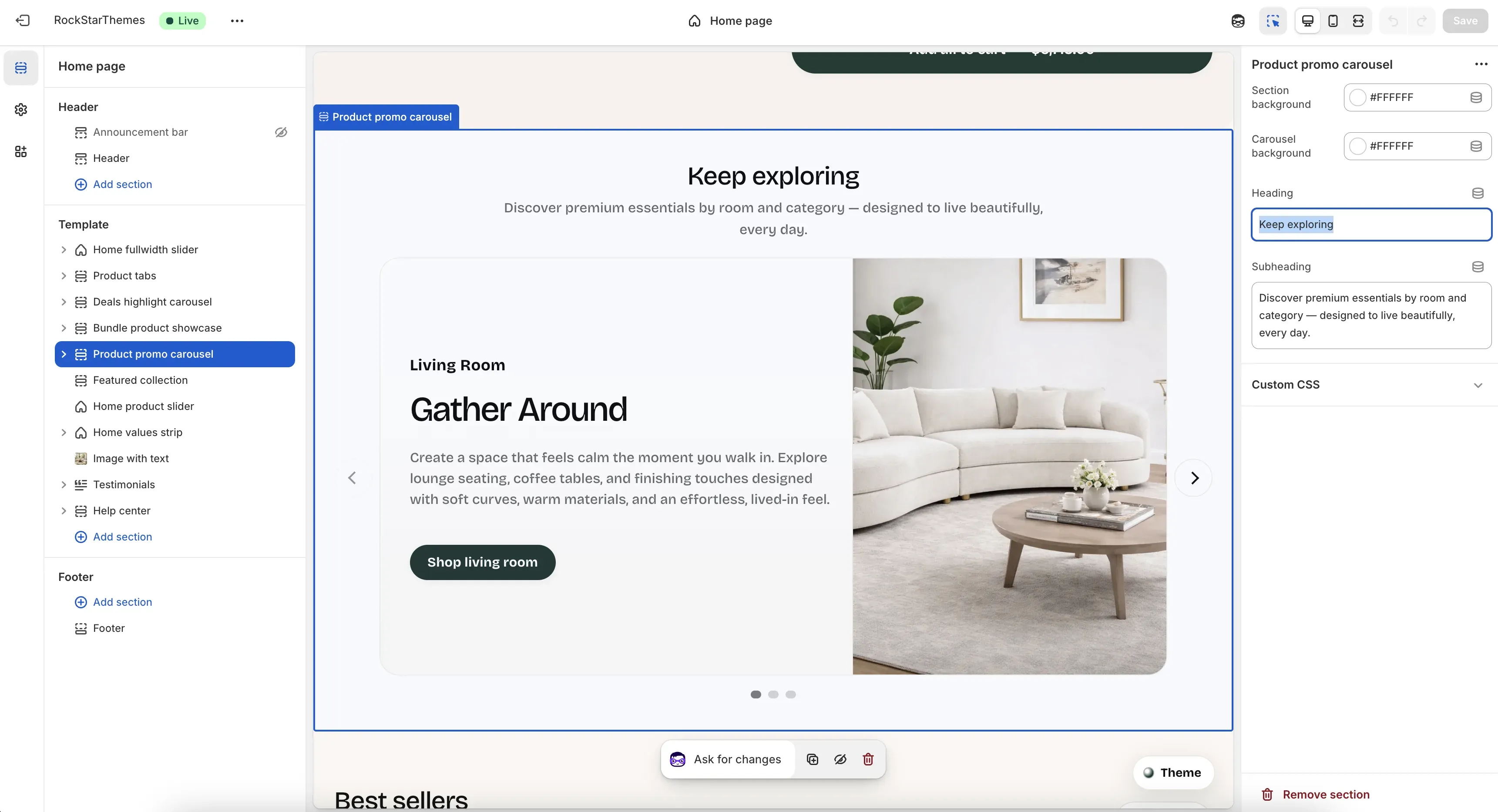
Section titled “What this section does”The Product promo carousel section highlights category promos in a split text-and-image carousel. It supports section-level heading content plus multiple promo slides with their own copy, link, image, and background style.
How to set it up
Section titled “How to set it up”- Go to Online Store -> Themes.
- Click Customize.
- Open the Home page template.
- In the left sidebar, select Product promo carousel.
- Add or edit promo slides, then save.
Editor areas overview
Section titled “Editor areas overview”- Left sidebar:
- Shows the selected section and promo slide blocks.
- You can add, remove, or reorder slides.
- Center preview:
- Displays split slide layout with text panel + image panel.
- Shows arrows and dots when more than one slide exists.
- Right settings panel:
- Section-level controls for backgrounds and heading copy.
- Block-level controls appear when a specific promo slide is selected.
Key section settings explained
Section titled “Key section settings explained”- Section background: outer section background color.
- Carousel background: background color of the carousel component container.
- Heading: section title above the carousel.
- Subheading: supporting text under the heading.
Promo slide block settings
Section titled “Promo slide block settings”Each Promo slide block includes:
- Category label: short eyebrow label above slide heading.
- Heading: primary message for the slide.
- Text: supporting description.
- Link: target URL for slide CTA and image click.
- Image: visual asset shown in the image pane.
- Background color: per-slide split panel background.
Important behavior:
- The section supports up to 12 promo slides.
- Slide layout alternates left/right on desktop to create visual rhythm.
- If no image is set, the theme can use fallback assets for known collection/blog links.
Common tasks
Section titled “Common tasks”Add a new promo slide
Section titled “Add a new promo slide”- Select Product promo carousel.
- Add a Promo slide block.
- Fill category label, heading, text, link, and image.
- Save.
Reorder slides
Section titled “Reorder slides”- Drag promo slide blocks in the left sidebar.
- Confirm order in preview.
- Save.
Refresh section styling
Section titled “Refresh section styling”- Update Section background and Carousel background to match campaign tone.
- Adjust per-slide Background color values for consistency.
- Save and verify readability.
- Keep headings concise so split slides remain balanced on tablet widths.
- Use consistent copy length across slides for smoother carousel pacing.
- Use high-quality, similarly framed images to avoid visual jumps between slides.
- Check desktop and mobile preview before publishing.
Why do arrows and dots not show?
Section titled “Why do arrows and dots not show?”They appear only when the section has more than one slide.
Why is a different image appearing than expected?
Section titled “Why is a different image appearing than expected?”If a slide image is blank, the theme may fall back to preset assets based on the slide link.
Why do slide layouts alternate automatically?
Section titled “Why do slide layouts alternate automatically?”Desktop slides intentionally mirror layout by index for visual variety and scannability.
Related guides
Section titled “Related guides”- Deals Highlight Carousel Documentation
- Bundle Product Showcase Documentation
- Product Tabs Documentation
- Theme Documentation
Publish checklist
Section titled “Publish checklist”- Verify heading/subheading copy.
- Check each slide link and image.
- Confirm desktop/mobile readability and navigation controls.
- Save and publish.
Need help?
Section titled “Need help?”If you still need help, contact support via the Contact page.