FAQ Page Accordion
What this section does
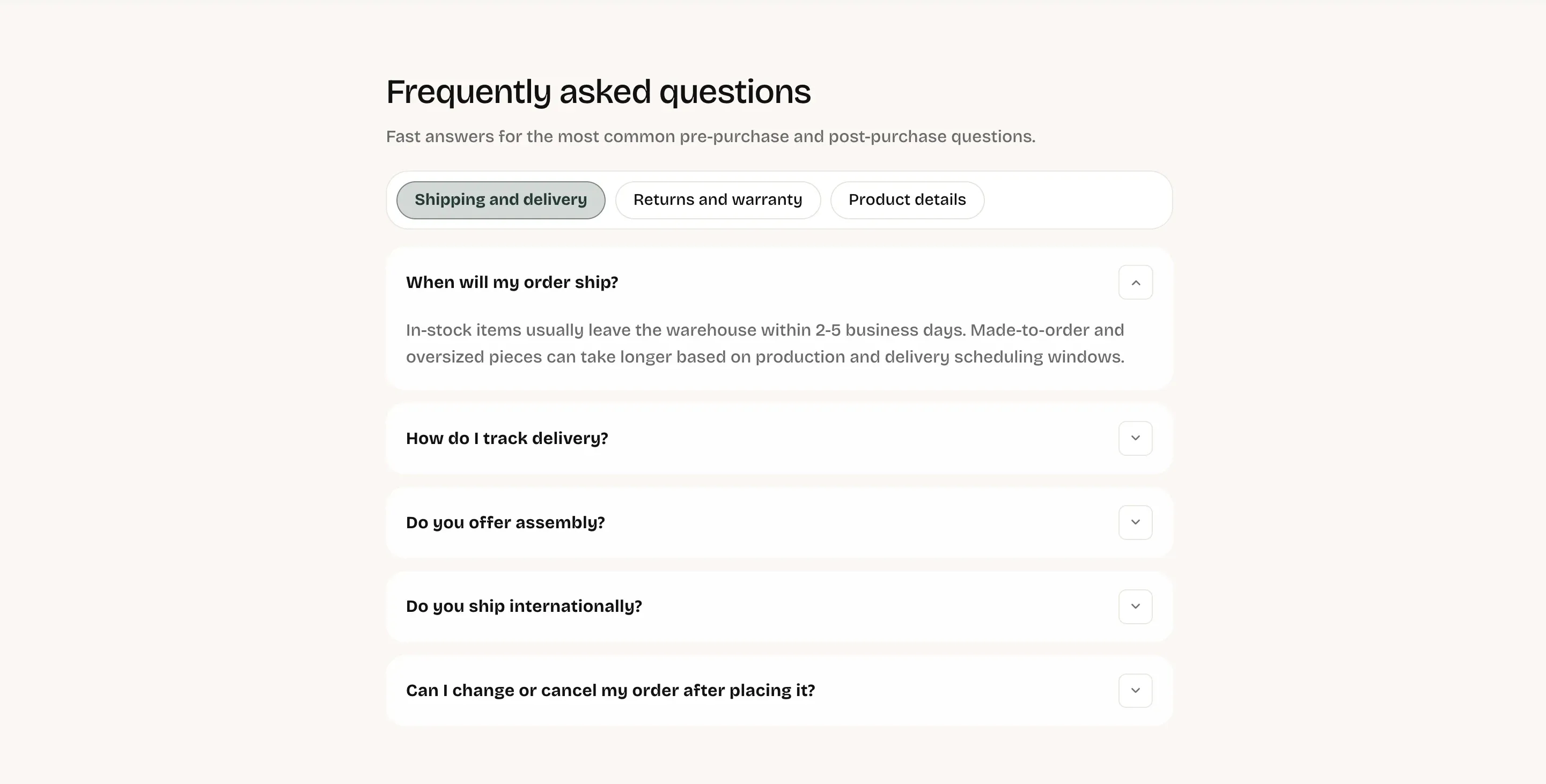
Section titled “What this section does”The FAQ accordion section powers the main FAQ experience on the FAQ page. It supports:
- Section heading and intro text.
- Optional category tabs.
- Expand/collapse question rows with rich text answers.
Where it appears
Section titled “Where it appears”- Template: FAQ (
page.faq). - Section instance in template:
faq. - Section type:
faq-accordion. - Block type:
FAQ.
How to set it up
Section titled “How to set it up”- Go to Online Store -> Themes.
- Click Customize.
- Open the FAQ template/page.
- Select FAQ accordion in the left sidebar.
- Configure section settings and FAQ blocks, then save.
Key section settings explained
Section titled “Key section settings explained”- Heading: main title.
- Text: intro paragraph under the title.
- Show category tabs: enables/disables the tab bar.
- Tabs label: accessibility label for the tablist.
- Default tab: first tab shown on page load (must match an existing tab label).
- Fallback tab label: category used when an FAQ block has no tab label and does not match keyword rules.
FAQ block settings explained
Section titled “FAQ block settings explained”For each FAQ block:
- Category tab label: optional explicit tab assignment.
- Question: summary row text.
- Answer: rich text content shown when expanded.
Important behavior
Section titled “Important behavior”- Tabs appear only when Show category tabs is enabled and there is more than one category.
- If Default tab is blank or invalid, the first available tab is used.
- If a block has no Category tab label, the theme auto-assigns category by question keywords:
- Shipping and delivery keywords:
ship,delivery,track,assembly,white-glove - Returns and warranty keywords:
return,damaged,warranty,refund - Product details keywords:
swatch,trade,designer,material - Otherwise it uses Fallback tab label (default:
General)
- Shipping and delivery keywords:
- On load, the first visible question in the active tab opens automatically.
- When tabs are off, only the first FAQ item is open by default.
- Tab keyboard navigation supports Arrow Left/Right, Home, and End.
Common tasks
Section titled “Common tasks”Add a new FAQ under an existing tab
Section titled “Add a new FAQ under an existing tab”- Click Add FAQ.
- Set Category tab label to the exact tab name you want.
- Fill question and answer.
- Save.
Create a new tab category
Section titled “Create a new tab category”- Add or edit one FAQ block.
- Enter a new Category tab label value.
- Save and verify a new tab appears.
Force a specific tab to open first
Section titled “Force a specific tab to open first”- Set Default tab to the exact tab text.
- Save and reload preview.
Show one continuous FAQ list (no tabs)
Section titled “Show one continuous FAQ list (no tabs)”- Disable Show category tabs.
- Save.
- Keep category names consistent (avoid near-duplicates like
ShippingvsShipping and delivery). - Use short, action-focused questions.
- Keep answers concise and link to policy pages when needed.
- Add explicit Category tab label values for predictable grouping.
Why did a question appear in the wrong tab?
Section titled “Why did a question appear in the wrong tab?”The block likely has no explicit category label, so keyword auto-assignment placed it.
Why is my default tab not selected on load?
Section titled “Why is my default tab not selected on load?”Default tab must match an existing tab label exactly.
Why are tabs not visible?
Section titled “Why are tabs not visible?”Either Show category tabs is disabled, or all FAQ items resolve to one category.
Related guides
Section titled “Related guides”Publish checklist
Section titled “Publish checklist”- Confirm heading and intro copy.
- Confirm category labels are consistent.
- Verify default tab behavior.
- Test expand/collapse for every FAQ.
- Validate desktop and mobile behavior.
Need help?
Section titled “Need help?”If you still need help, contact support via the Contact page.