Blog
What this page does
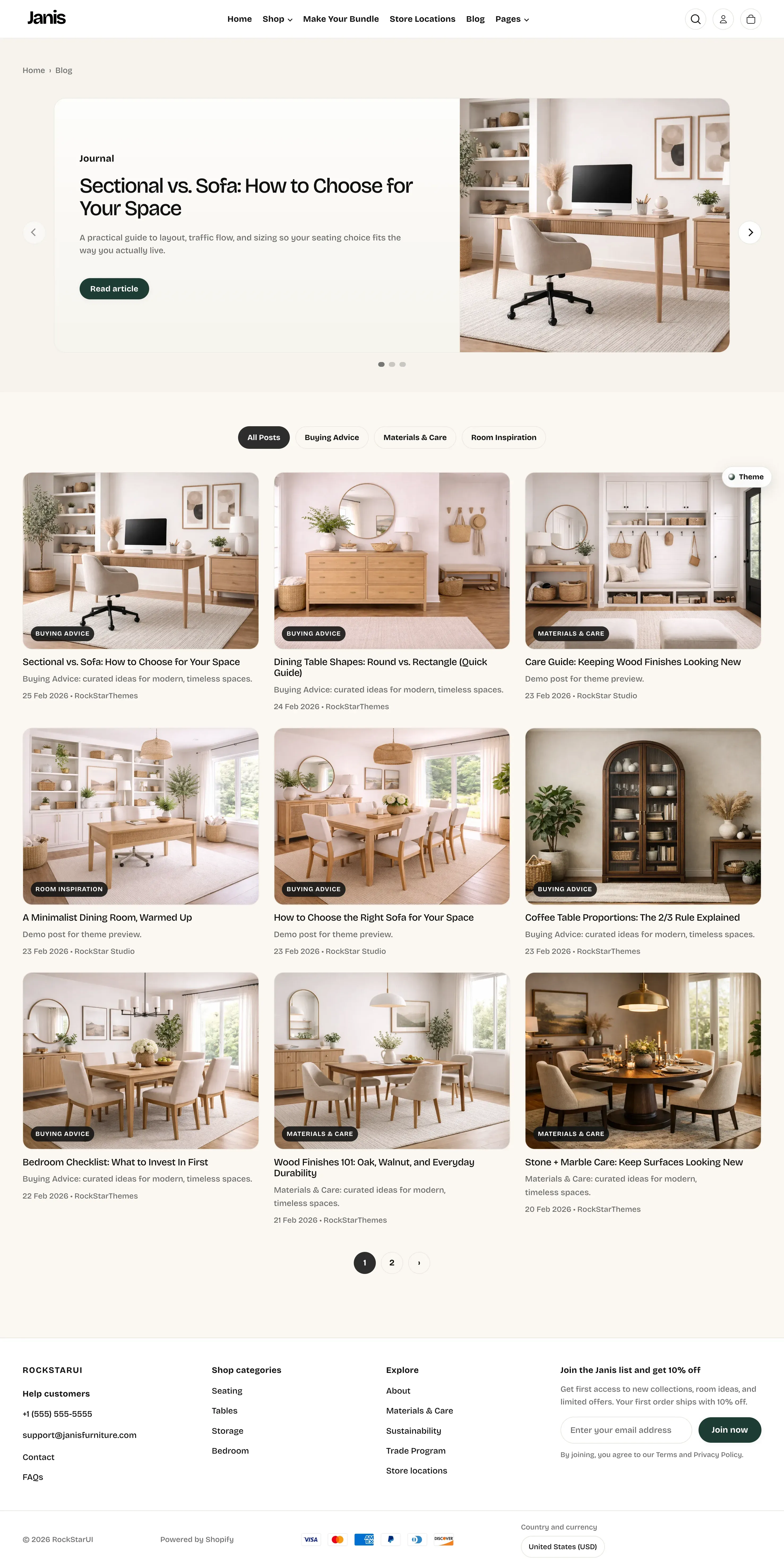
Section titled “What this page does”The Blog page combines two layers:
- A featured hero slider at the top (manual editorial highlights).
- A post listing area with tag filters, cards, and pagination (automatic from blog content).
This gives merchants control over featured stories while keeping the main grid synced with published blog posts.
How this template is built
Section titled “How this template is built”The blog template uses:
- Product promo carousel section (for the top featured slider).
- Beauty inspirations blog section (for chips, article grid, and pagination).
How to set it up
Section titled “How to set it up”- Go to Online Store -> Themes.
- Click Customize.
- Open the Blog template.
- Select the top Product promo carousel section to manage featured slides.
- Select Beauty inspirations blog section to manage listing settings.
- Save.
How to add and edit blog posts
Section titled “How to add and edit blog posts”- Go to Content -> Blog posts (or Online Store -> Blog posts, depending on admin layout).
- Click Add blog post.
- Choose the target blog (for example, Journal).
- Set title, content, featured image, excerpt, author, publish date.
- Add relevant tags (these drive filter chips).
- Publish.
To edit an existing post:
- Open the post from the post list.
- Update content, tags, excerpt, image, or publish status.
- Save.
Featured slider (top area)
Section titled “Featured slider (top area)”The top slider is editorial and manual:
- Each slide is a block in Product promo carousel.
- You control eyebrow, heading, summary text, CTA label, link target, and background.
- Use this area for high-priority or seasonal articles.
Listing and filters (main area)
Section titled “Listing and filters (main area)”The listing section behavior:
- All Posts chip is always available.
- Tag chips are generated from blog tags automatically.
- Clicking a tag chip opens the tagged blog URL and filters the grid.
- Cards show article image, first tag badge, title, excerpt, date, and author.
- Pagination appears when post count exceeds configured posts-per-page.
Key settings explained
Section titled “Key settings explained”For the Beauty inspirations blog section:
- Posts per page: controls how many cards render before pagination.
For the top Product promo carousel section:
- Slide-level content controls featured hero copy and links.
- Carousel controls affect top slider behavior and feel.
Important behavior
Section titled “Important behavior”- Tag chips come from post tags; no tags means only All Posts appears.
- Card tag badge uses the first tag on each article.
- Excerpt fallback uses truncated article content if excerpt is empty.
- If no mapped thumbnail asset is found, the card shows a placeholder media area.
- Filter navigation stores and restores scroll position in session storage for better UX.
Common tasks
Section titled “Common tasks”Feature a new article in hero slider
Section titled “Feature a new article in hero slider”- Open Product promo carousel on Blog template.
- Add or edit a slide block.
- Set CTA link to the target blog post URL.
- Save and verify in storefront.
Add a new filter category
Section titled “Add a new filter category”- Add the same new tag to one or more blog posts.
- Publish updates.
- Reload blog page and verify new chip appears.
Reduce grid length per page
Section titled “Reduce grid length per page”- Open Beauty inspirations blog section.
- Lower Posts per page.
- Save and check pagination.
- Keep tag taxonomy clean (consistent casing and wording).
- Use short, scannable titles for card readability.
- Write purposeful excerpts to improve grid performance.
- Keep hero slider focused on 3 to 5 top stories for clarity.
Why is a tag chip missing?
Section titled “Why is a tag chip missing?”No published posts currently use that tag in this blog.
Why does a card show generic/placeholder media?
Section titled “Why does a card show generic/placeholder media?”The article does not resolve to a mapped thumbnail asset in theme logic.
Why is the card showing the wrong tag label?
Section titled “Why is the card showing the wrong tag label?”The card displays the article’s first tag. Reorder or update tags on that post.
Why did page jump behavior improve after filtering?
Section titled “Why did page jump behavior improve after filtering?”The section stores previous scroll context in session storage and restores position on reload.
Related guides
Section titled “Related guides”- Blog Carousel Documentation
- Product Promo Carousel Documentation
- Theme Documentation
- Store Locations Documentation
Publish checklist
Section titled “Publish checklist”- Featured slider links point to valid blog posts.
- Tag naming is consistent across posts.
- Excerpts and hero summaries are polished.
- Pagination works at expected post count.
- Mobile and desktop card layout verified.
Need help?
Section titled “Need help?”If you still need help, contact support via the Contact page.