Featured Collection
What this section does
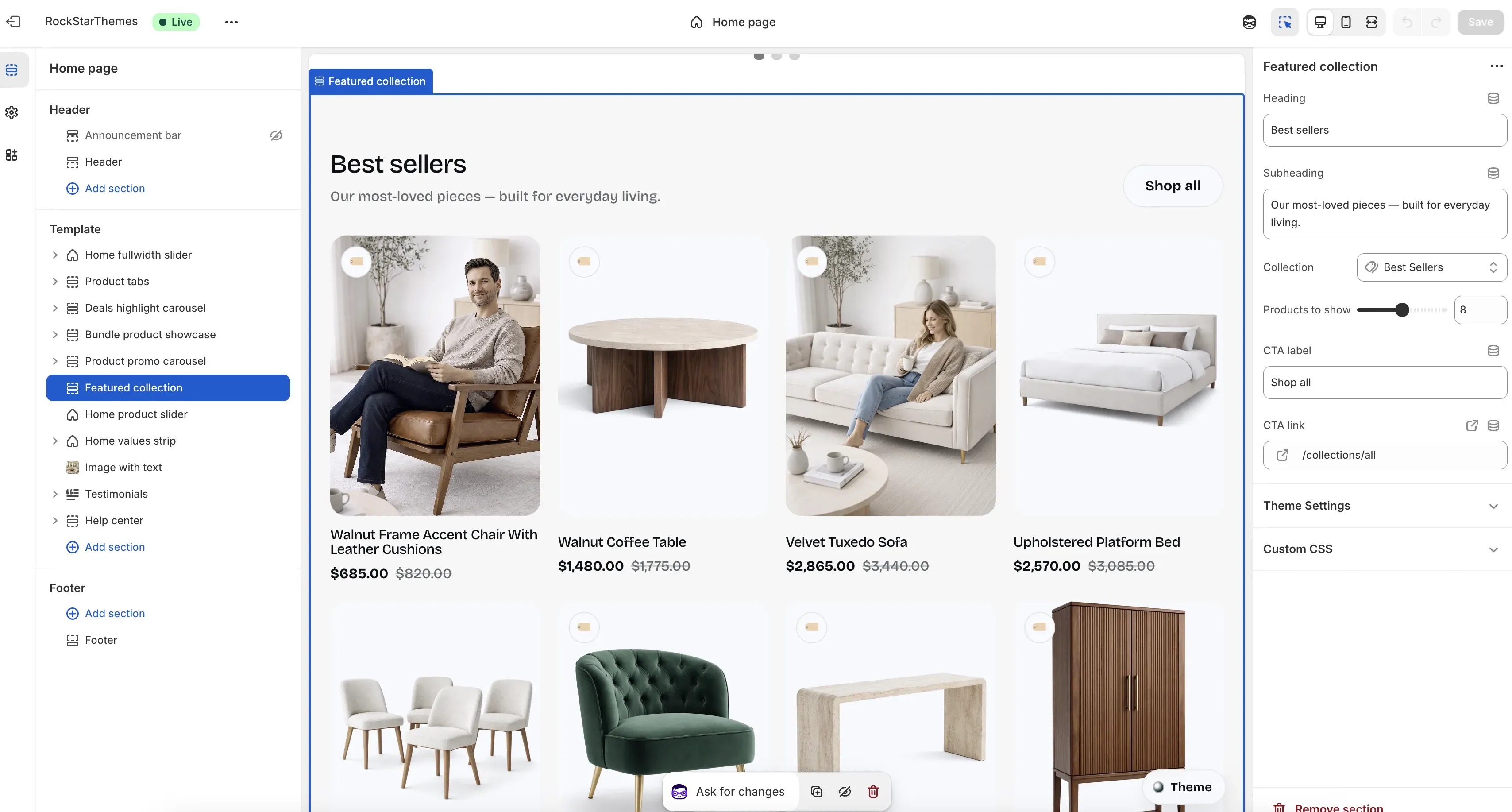
Section titled “What this section does”The Featured collection section shows a curated product grid from one selected collection. It includes section copy, product count control, and a top-right CTA link.
How to set it up
Section titled “How to set it up”- Go to Online Store -> Themes.
- Click Customize.
- Open the Home page template.
- In the left sidebar, select Featured collection.
- Set collection, product count, and CTA fields, then save.
Editor areas overview
Section titled “Editor areas overview”- Left sidebar:
- Shows the selected section instance in the template tree.
- Center preview:
- Shows section heading/subheading and the product card grid.
- Reflects product count and selected collection immediately.
- Right settings panel:
- Section controls: Heading, Subheading, Collection, Products to show, CTA label, CTA link.
Key settings explained
Section titled “Key settings explained”- Heading: section title above the product grid.
- Subheading: supporting copy under the heading.
- Collection: source collection used for products in the grid.
- Products to show: grid item count (from 4 up to 12).
- CTA label: text for the top-right call-to-action.
- CTA link: destination for the CTA button.
Important behavior
Section titled “Important behavior”- If CTA link is empty, the button defaults to the selected collection URL.
- If no collection is selected, the section falls back to all products.
- Product cards automatically show sale pricing when compare-at price is higher than current price.
Common tasks
Section titled “Common tasks”Switch the featured collection
Section titled “Switch the featured collection”- Open Featured collection settings.
- Change Collection.
- Review product order and relevance in preview.
- Save.
Increase or reduce product density
Section titled “Increase or reduce product density”- Adjust Products to show.
- Verify layout balance on desktop and mobile.
- Save.
Update CTA destination
Section titled “Update CTA destination”- Set a custom CTA link (for example,
/collections/all). - Keep CTA label aligned with destination intent.
- Save.
- Keep heading/subheading concise to prioritize product visibility.
- Use product counts that maintain clean rows for your target breakpoints.
- Make sure the selected collection has enough in-stock products for the configured count.
- Validate CTA destination after major navigation updates.
Why are products not from the collection I expected?
Section titled “Why are products not from the collection I expected?”Check the Collection setting first. If blank, the section can fall back to all products.
Why is the CTA still working when CTA link is empty?
Section titled “Why is the CTA still working when CTA link is empty?”The theme automatically links CTA to the selected collection URL when no explicit link is provided.
Why do some products show two prices?
Section titled “Why do some products show two prices?”Those products have compare-at prices higher than current prices, so the section renders sale and compare values.
Related guides
Section titled “Related guides”Publish checklist
Section titled “Publish checklist”- Confirm heading/subheading copy.
- Confirm selected collection and product count.
- Verify CTA label and destination.
- Check desktop/mobile preview and save.
Need help?
Section titled “Need help?”If you still need help, contact support via the Contact page.