Product Tabs
What this section does
Section titled “What this section does”The Product Tabs section shows curated products in category tabs on the homepage. It is used to highlight different collections in one compact section without sending users to another page.
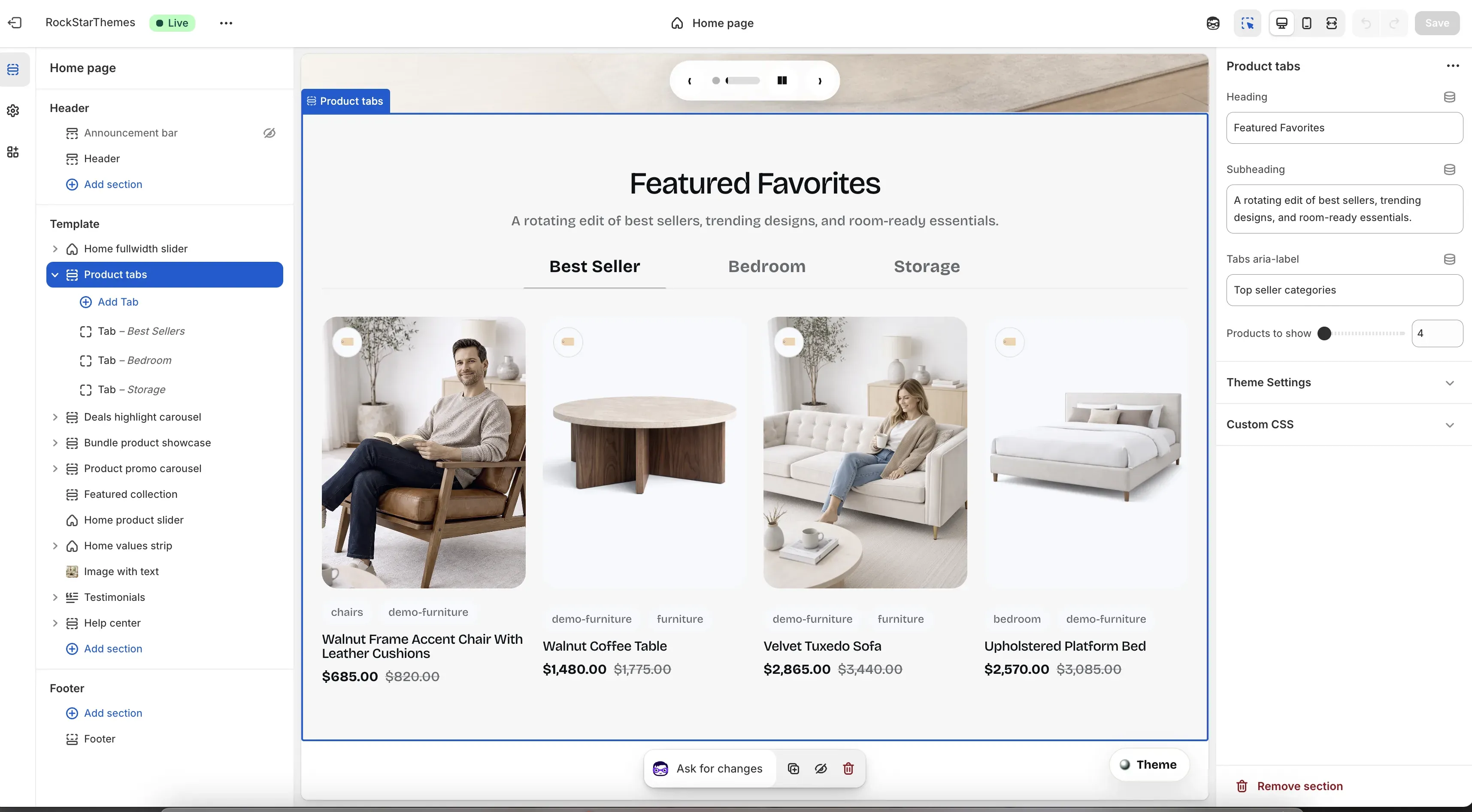
How to set it up
Section titled “How to set it up”- Go to Online Store -> Themes.
- Click Customize.
- Open the Home page template.
- In the left sidebar, select Product tabs.
- Add or edit tab blocks, then save.
Editor areas overview
Section titled “Editor areas overview”- Left sidebar:
- Shows the section instance and its tab blocks.
- Add Tab creates a new tab block.
- Drag tab blocks to change tab order.
- Center preview:
- Shows heading, subheading, tab labels, and product cards for the active tab.
- Useful for checking copy length and card density.
- Right settings panel:
- Section-level controls (Heading, Subheading, Tabs aria-label, Products to show).
- Theme settings and custom CSS groups for styling overrides.
Key settings explained
Section titled “Key settings explained”- Heading: main section title shown above the tabs.
- Subheading: supporting copy under the heading; keep this short for visual balance.
- Tabs aria-label: accessibility label for screen readers describing the tab group.
- Products to show: number of product cards per tab panel.
Tab block settings
Section titled “Tab block settings”Each Tab block includes:
- Label: tab text shown in the tab row (for example, Best Seller, Bedroom, Storage).
- Collection: product source for that tab.
Fallback behavior:
- If a tab has no collection selected, the section falls back to all products.
- If there are no tab blocks, the section does not render.
Common tasks
Section titled “Common tasks”Add a new tab
Section titled “Add a new tab”- In Product tabs, click Add Tab.
- Set Label and choose a Collection.
- Drag into desired position.
- Save.
Reorder tabs
Section titled “Reorder tabs”- Drag tab blocks in the left sidebar.
- Confirm order in preview.
- Save.
Increase visible products
Section titled “Increase visible products”- Raise Products to show.
- Review desktop and mobile layout to avoid overcrowding.
- Save.
- Use 3-5 tabs for clarity; too many tabs reduce scanability.
- Keep label lengths similar so the tab row looks balanced.
- Ensure each selected collection has enough products to fill the configured limit.
- Set a meaningful Tabs aria-label for accessibility compliance.
Why is a tab showing unexpected products?
Section titled “Why is a tab showing unexpected products?”That tab likely has no collection selected, so it falls back to all products. Open that tab block and set a collection explicitly.
Why does one tab look empty?
Section titled “Why does one tab look empty?”The assigned collection may have fewer products than expected, or unavailable products in the active market. Check the collection content in Shopify Admin.
Why do products look too dense on mobile?
Section titled “Why do products look too dense on mobile?”Lower Products to show and verify the section in mobile preview before publishing.
Related guides
Section titled “Related guides”Publish checklist
Section titled “Publish checklist”- Check each tab label and collection assignment.
- Confirm product count per tab is appropriate for mobile and desktop.
- Validate heading/subheading copy length.
- Save and publish.
Need help?
Section titled “Need help?”If you still need help, contact support via the Contact page.