Saved templates and sections
What this section does
Section titled “What this section does”Saved templates let you reuse work. Instead of rebuilding a layout you already like, save it once and insert it wherever you need it.
There are two places this shows up:
- Saved templates in the app navigation — reusable page templates, sections, and blocks, listed with their type, last modified date, and actions.
- Saved sections in the editor’s left panel — the sections you have saved, ready to insert into the page you are working on.
How to save a section
Section titled “How to save a section”- In the editor, select the section you want to reuse.
- Use the section’s Save this section for reuse action.
- Give it a clear name.
It is now available in Saved sections in every page you edit.
How to insert a saved section
Section titled “How to insert a saved section”- Open the page you want to add it to.
- Open Saved sections in the left panel.
- Find the section and select Insert.
The section is added to the page. Editing it afterwards only affects that page — inserting creates an independent copy, so changing one page does not change another.
Manage saved templates
Section titled “Manage saved templates”Open Saved templates to see everything you have saved.
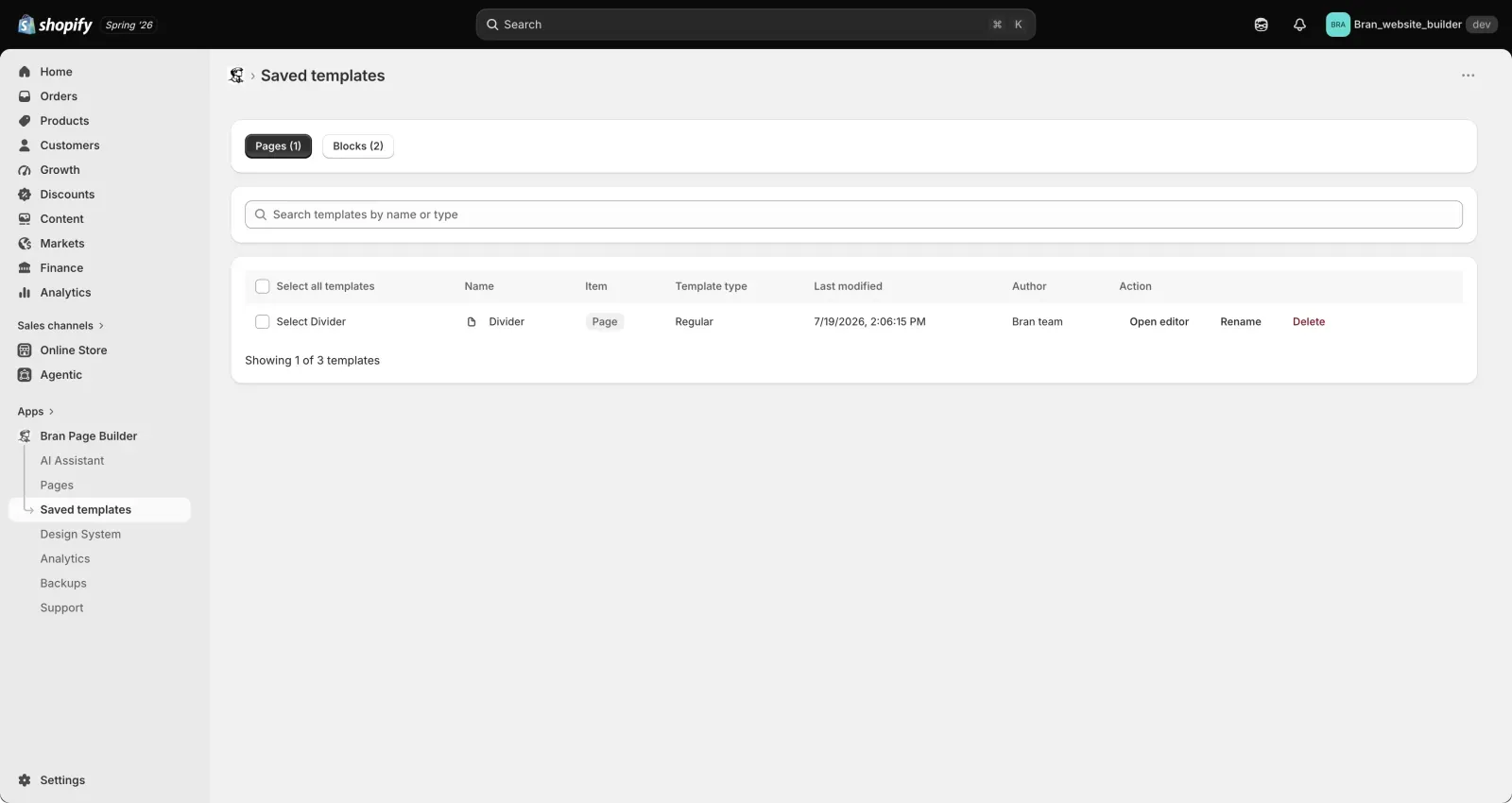
- Rename — give a template a clearer name.
- Delete — remove a template you no longer use. Select several with the checkboxes to delete them together.
Deleting a saved template does not affect pages that already use copies of it.
- Name saved sections by what they are for, not what they look like — “Campaign hero with countdown” is easier to find later than “Hero 3”.
- Save your standard footer call-to-action, FAQ block, and newsletter section once. Most stores reuse the same three or four blocks constantly.
- Review your saved templates occasionally and delete the ones that no longer match your brand, so the insert list stays short.
If I edit a saved section, do my existing pages change?
Section titled “If I edit a saved section, do my existing pages change?”No. Inserting a saved section creates an independent copy on that page. Existing pages keep the version they already have.
Can I share saved templates with another store?
Section titled “Can I share saved templates with another store?”Saved templates belong to the store they were created in. To move content between stores, use the download and import options in Backups.
What is the difference between a saved template and a saved section?
Section titled “What is the difference between a saved template and a saved section?”A saved section is one section of a page. A saved template can also cover a full page layout or a smaller block. Both appear in Saved templates, labeled by type.
Related guides
Section titled “Related guides”Need help?
Section titled “Need help?”If you still need help, contact support via the Contact page.