Backups
What this section does
Section titled “What this section does”A backup is a snapshot of all your Bran content: every page, every saved template, and every Design System style profile. Restoring a backup returns your builder content to exactly how it was when the snapshot was taken.
Create a backup
Section titled “Create a backup”- Open Backups.
- Enter a name that will mean something later, such as “Before homepage redesign”.
- Select Create backup.
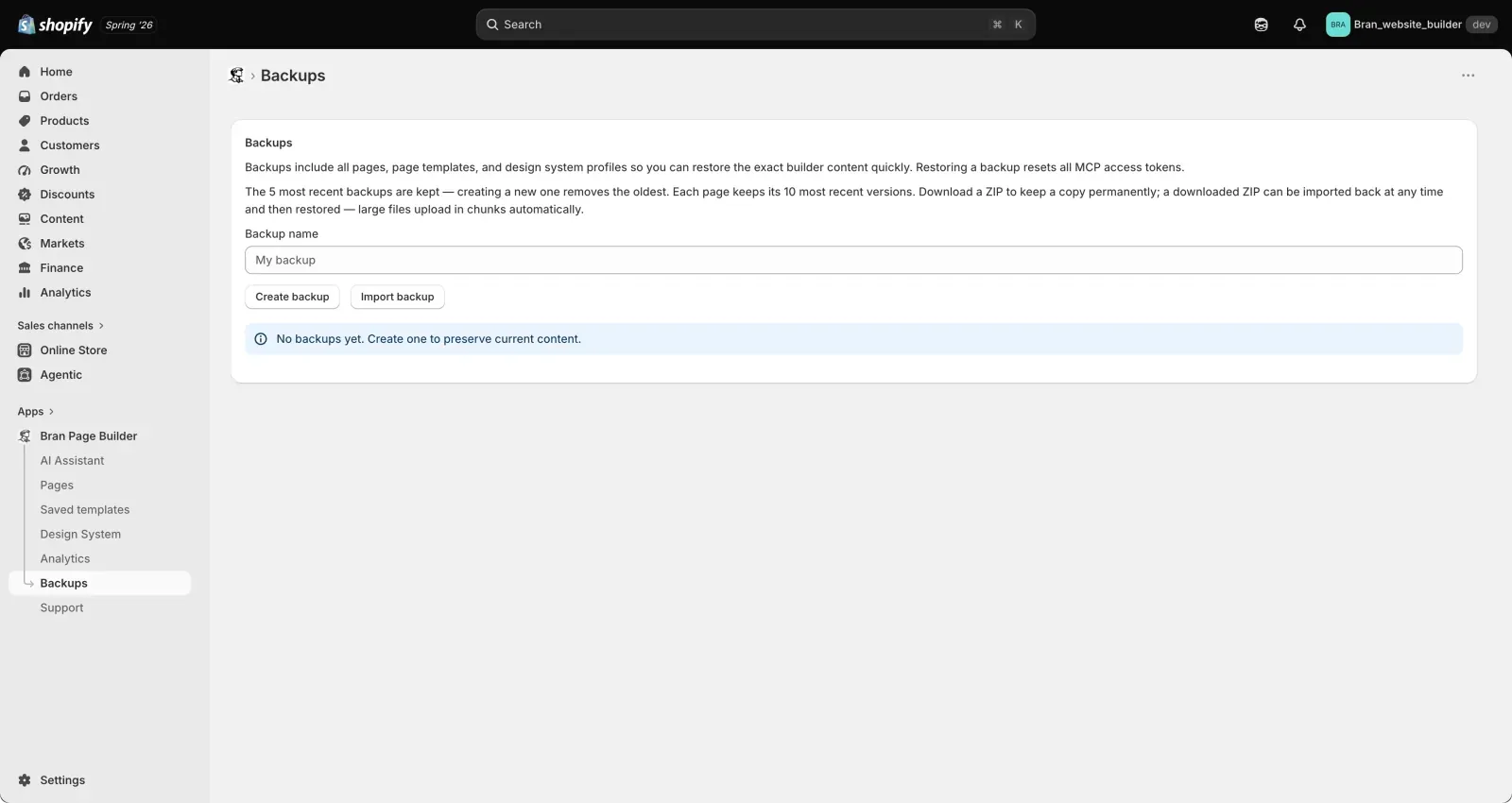
The backup appears in the list with its creation date and how many pages, templates, and style profiles it contains.
Note: The 5 most recent backups are kept. Creating a new one removes the oldest. To keep a copy permanently, download it.
Restore a backup
Section titled “Restore a backup”- Find the backup in the list.
- Select Restore and confirm.
Restoring replaces your current builder content with the content in the backup.
Important:
- Restoring is a full replacement, not a merge. Pages created after the backup was taken are not preserved by it.
- Editing across the app is temporarily unavailable while a backup is being created or restored. A banner tells you when this is happening.
- Restoring resets all AI assistant access. Reconnect your assistants afterwards. See AI Assistant.
- Restoring changes your builder content. It does not automatically republish your live pages — republish the pages you want updated on the storefront.
Download a backup
Section titled “Download a backup”Select Download ZIP on any backup to save a copy to your computer. Downloaded backups are yours to keep and are not subject to the five-backup limit.
Store downloads somewhere safe. A backup file contains your page content, templates, and styles.
Import a backup
Section titled “Import a backup”- Select Import backup.
- Choose a previously downloaded backup file.
- Wait for the upload to finish. Large files upload in parts automatically and show progress.
Once imported, the backup appears in your list and can be restored like any other.
Import is also how you move content between stores: download from one store, import into the other, then restore.
Version history versus backups
Section titled “Version history versus backups”These are two different safety nets:
- Version history in the editor covers one page and keeps its 10 most recent versions. Use it for quick undo of recent work.
- Backups cover everything at once. Use them before large changes and as your long-term safety net.
- Create a backup before restructuring a live page, before importing content from another store, and before letting an AI assistant make broad changes.
- Name backups after what you are about to do, not the date. The date is recorded automatically.
- Download a backup once a month and keep it outside the app. The five-backup limit is a rolling window, not an archive.
- After restoring, check your published pages and republish the ones whose live content should change.
Does a backup include my published storefront pages?
Section titled “Does a backup include my published storefront pages?”A backup covers your builder content — pages, templates, and styles. Restoring brings back that content in the app; republish to push it live again.
Will restoring lose work I did today?
Section titled “Will restoring lose work I did today?”Yes, anything created or changed after the backup was taken is not in it. Create a fresh backup before restoring an older one if you want both.
Can I restore just one page?
Section titled “Can I restore just one page?”Restoring applies to the whole snapshot. To recover a single page, use the page’s version history in the editor instead.
Why can I not edit while a backup runs?
Section titled “Why can I not edit while a backup runs?”Editing is paused so a snapshot or restore is taken from a consistent state. It resumes automatically when the operation finishes.
Related guides
Section titled “Related guides”Need help?
Section titled “Need help?”If you still need help, contact support via the Contact page.