Bran Page Builder
Bran Page Builder is a Shopify app for building custom storefront pages without writing code.
You compose a page from ready-made components, style everything from one shared Design System so it matches your theme, preview it at desktop, tablet, and mobile sizes, and publish it to your store as a real Online Store page.
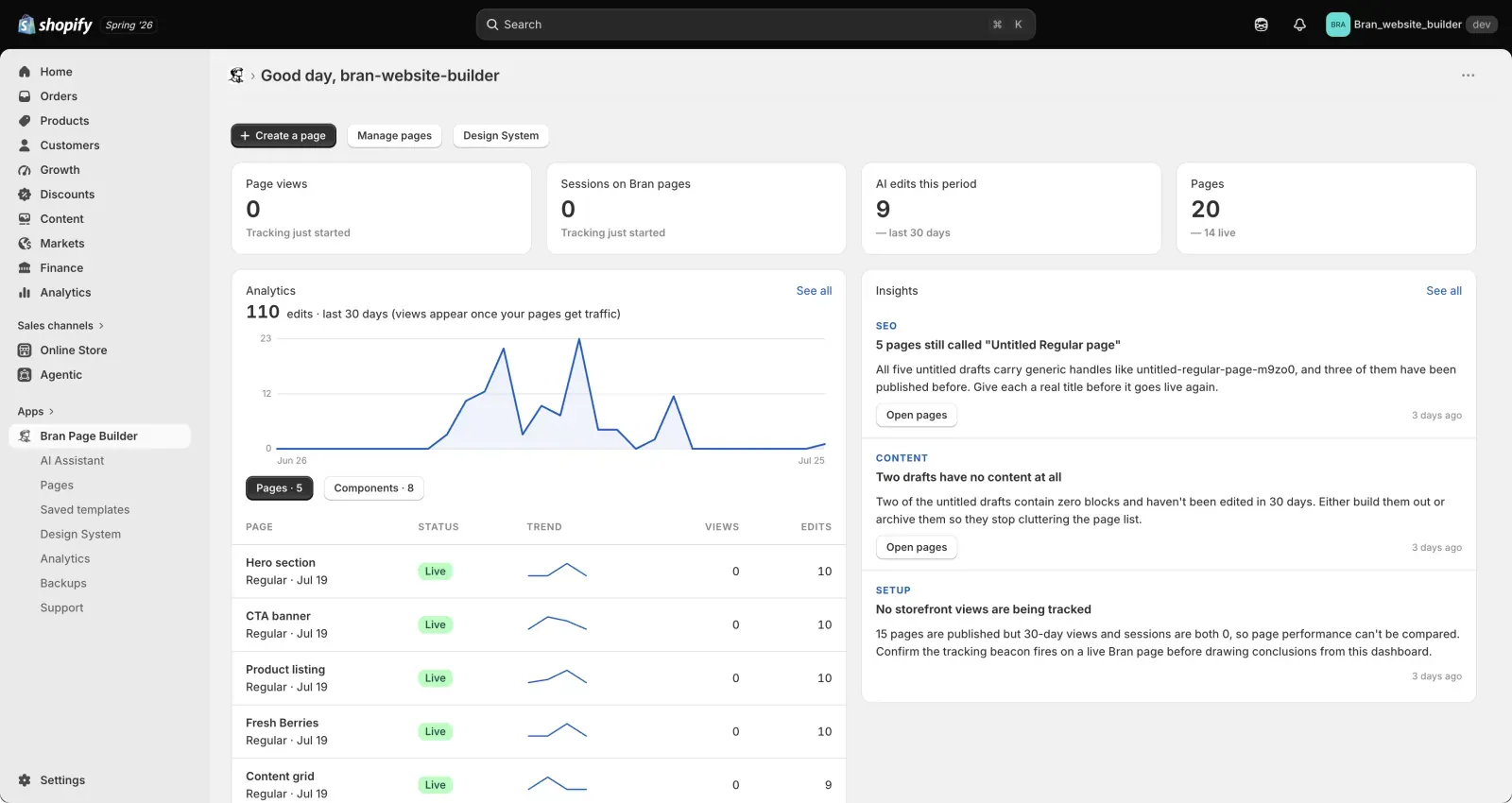
What this section does
Section titled “What this section does”This documentation explains how to set up the app, build your first page, keep your pages on-brand, publish them to your storefront, and use the extras: saved templates, analytics, backups, and an optional AI assistant.
What you can do
Section titled “What you can do”- Build pages visually from a library of storefront components — heroes, carousels, product listings, collections, blog posts, FAQ, text and image sections, and more.
- Choose a page type: Regular, Home, Product, Collection, Blog post, or Password.
- Style every component from a shared Design System so colors, fonts, spacing, and buttons stay consistent.
- Match the Design System to your existing Shopify theme, or start from a ready-made style preset.
- Edit content, style, and advanced options per component, with separate settings for desktop, tablet, and mobile.
- Save sections and whole pages as reusable templates.
- Publish Regular pages directly to your storefront, and place other page types through the Shopify theme editor.
- Track page views, sessions, and edit activity in Analytics.
- Snapshot and restore all of your builder content with Backups.
- Optionally connect an AI assistant that can build, edit, and review pages with you.
Where things live
Section titled “Where things live”Bran adds these items to the app navigation in Shopify admin:
| Item | What it is for |
|---|---|
| Home | Overview of activity, key metrics, and quick actions |
| AI Assistant | Connect an assistant, review past conversations and suggestions |
| Pages | Create, edit, duplicate, and delete your Bran pages |
| Saved templates | Reusable page templates, sections, and blocks |
| Design System | Colors, typography, spacing, and button styles for every component |
| Analytics | Page views, sessions, and editing activity |
| Backups | Snapshot, restore, download, and import your builder content |
| Support | Documentation and support links |
Recommended first workflow
Section titled “Recommended first workflow”- Read Getting started.
- Set up your Design System so new pages inherit your brand.
- Create a page and choose a page type.
- Build the layout in the page editor.
- Publish it to your store.
- Check results in Analytics.
- Set up the Design System before you build a lot of pages. Style changes apply to every component that uses them, so getting it right early saves rework.
- Start with a Regular page. It publishes straight to your storefront with no theme editor step.
- Save a section you like as a saved section, then reuse it on other pages instead of rebuilding it.
- Create a backup before large restructuring work.
Do I need to edit theme code?
Section titled “Do I need to edit theme code?”No. Bran does not require you to edit theme files. Regular pages publish directly to your Online Store, and other page types are placed through the standard Shopify theme editor.
Will my pages match my theme?
Section titled “Will my pages match my theme?”Bran components inherit the values you set in the Design System, and the Design System can be matched to your active theme in one step. You can also override individual settings per component.
What happens to my pages if I uninstall the app?
Section titled “What happens to my pages if I uninstall the app?”Published Bran pages depend on the app to render, so plan any uninstall carefully. See Billing and subscription and the Privacy Policy for what happens to your data after uninstall.
Pages in this section
Section titled “Pages in this section”- Getting started
- Pages
- The page editor
- Component library
- Design System
- Publish to your store
- Saved templates and sections
- Analytics
- AI Assistant
- Backups
- Billing and subscription
- Troubleshooting
- Terms and Conditions
- Privacy Policy
Need help?
Section titled “Need help?”If you still need help, contact support via the Contact page.