AI Assistant
What this section does
Section titled “What this section does”Bran can be connected to an AI assistant such as Claude or Codex. Once connected, you can ask the assistant to review, build, edit, and publish pages for your store from a normal chat, and it works on the same pages you see in the app.
This is optional. Everything in Bran works without it.
Before you connect
Section titled “Before you connect”A connected assistant can read and change the Bran pages in this store. Only connect assistants you trust and use accounts you control. You can revoke a connection at any time.
Connect Claude
Section titled “Connect Claude”- Open AI Assistant in the app and copy the server URL shown there.
- In Claude, go to Settings → Connectors → Add custom connector.
- Paste the URL and add the connector.
- Sign in with your store when prompted and approve access.
- Start a new chat, make sure Bran is enabled in the tools menu, and paste the “Start a session” prompt from the app.
Custom connectors are available on Claude’s paid plans.
Add the Bran skill (optional, recommended)
Section titled “Add the Bran skill (optional, recommended)”The connector gives Claude the tools. The skill teaches it how to use them well — page structure, binding real products, and asking you before publishing.
- Download the skill file from the AI Assistant page.
- In Claude, go to Settings → Capabilities → Skills → Upload skill.
- Select the downloaded file and leave it enabled.
On team and enterprise plans, an administrator may need to enable skills for the workspace first.
Connect ChatGPT or Codex
Section titled “Connect ChatGPT or Codex”- Copy the server URL from the AI Assistant page.
- In the Codex app, go to Settings → MCP servers → Add server.
- Choose the streamable HTTP option and paste the server URL.
- Save, restart the app, then select Authenticate.
- Start a session and paste the “Start a session” prompt from the app.
Skills are a Claude feature, so there is nothing to install here. Codex receives the same guidance automatically when it connects.
Your conversations
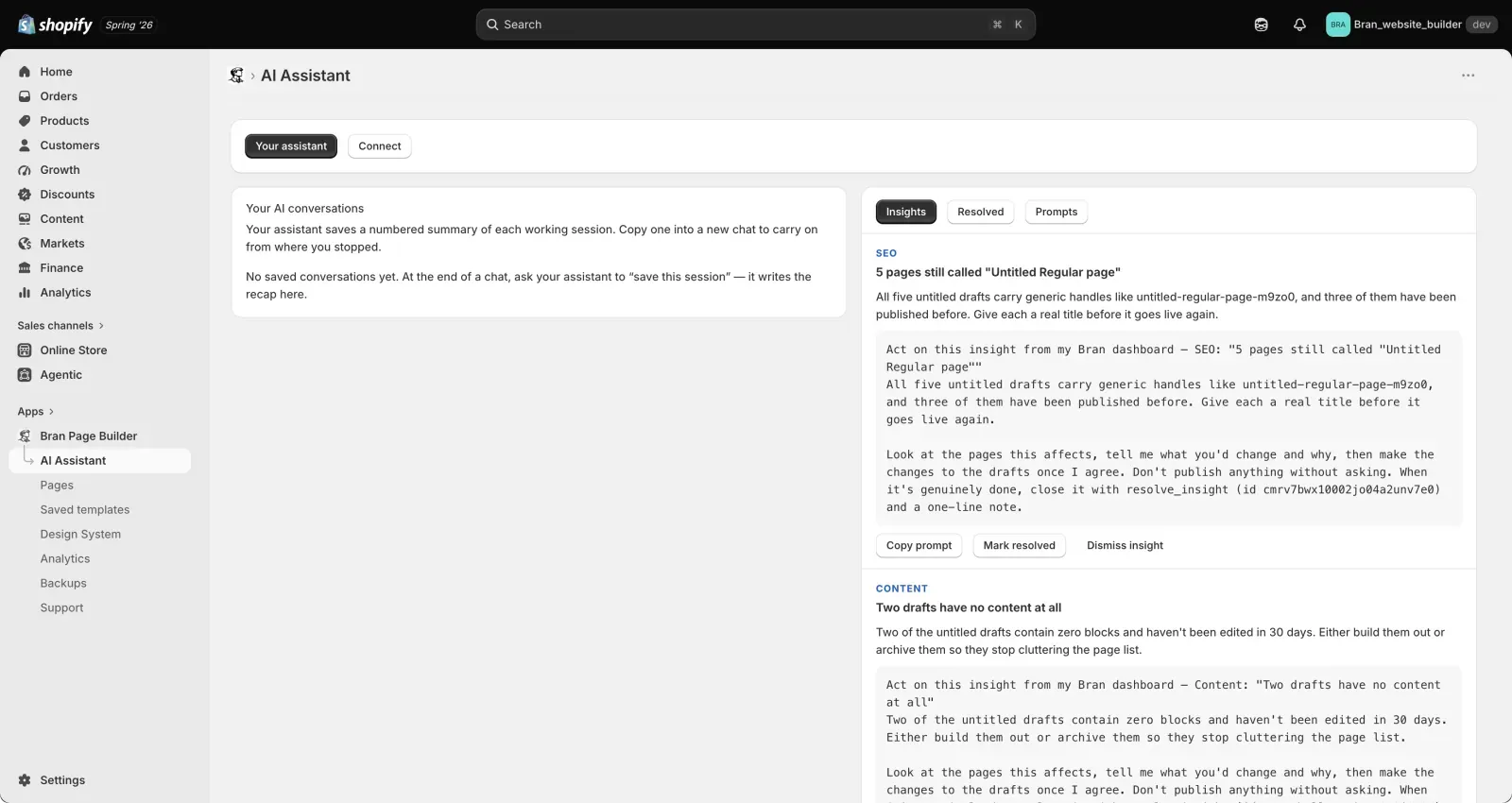
Section titled “Your conversations”Saved conversations from your assistant appear in the app, so you can pick up where a previous chat left off without repeating context. Open one to see what was done, or remove ones you no longer need.
Suggestions
Section titled “Suggestions”When an assistant notices something worth fixing on a page, it can raise it as a suggestion. Suggestions are listed with the page they refer to and when they were raised. Resolve them once handled, or dismiss the ones that do not apply — dismissed suggestions are not raised again.
Manage connected assistants
Section titled “Manage connected assistants”The Connected assistants list shows each connection with when it was created and last used.
- Revoke removes a connection immediately. The assistant loses access until you connect it again.
Note: Restoring a backup resets all assistant access. You will need to reconnect afterwards.
- Ask the assistant to show you a plan before it edits a live page.
- Keep publishing as your decision. Ask the assistant to save its work and leave the page in draft for you to review.
- Revoke connections you no longer use, and connections belonging to people who have left your team.
- Review the app’s own page history after a long assistant session, so you can roll back easily if needed.
Can the assistant see my orders or customers?
Section titled “Can the assistant see my orders or customers?”No. The app has no access to order, customer, or payment data, so neither does a connected assistant. It works with your Bran pages, templates, styles, and page analytics.
Can the assistant publish a page without asking me?
Section titled “Can the assistant publish a page without asking me?”It has the ability to publish. The recommended skill instructs it to confirm with you first, but you should still treat publishing as something to authorize explicitly in the conversation.
What happens if I revoke a connection mid-conversation?
Section titled “What happens if I revoke a connection mid-conversation?”The assistant loses access straight away and can no longer read or change your pages. Nothing already saved is affected.
Does connecting an assistant change my pages automatically?
Section titled “Does connecting an assistant change my pages automatically?”No. Nothing happens until you ask it to do something.
Related guides
Section titled “Related guides”Need help?
Section titled “Need help?”If you still need help, contact support via the Contact page.