Main Window
What this section does
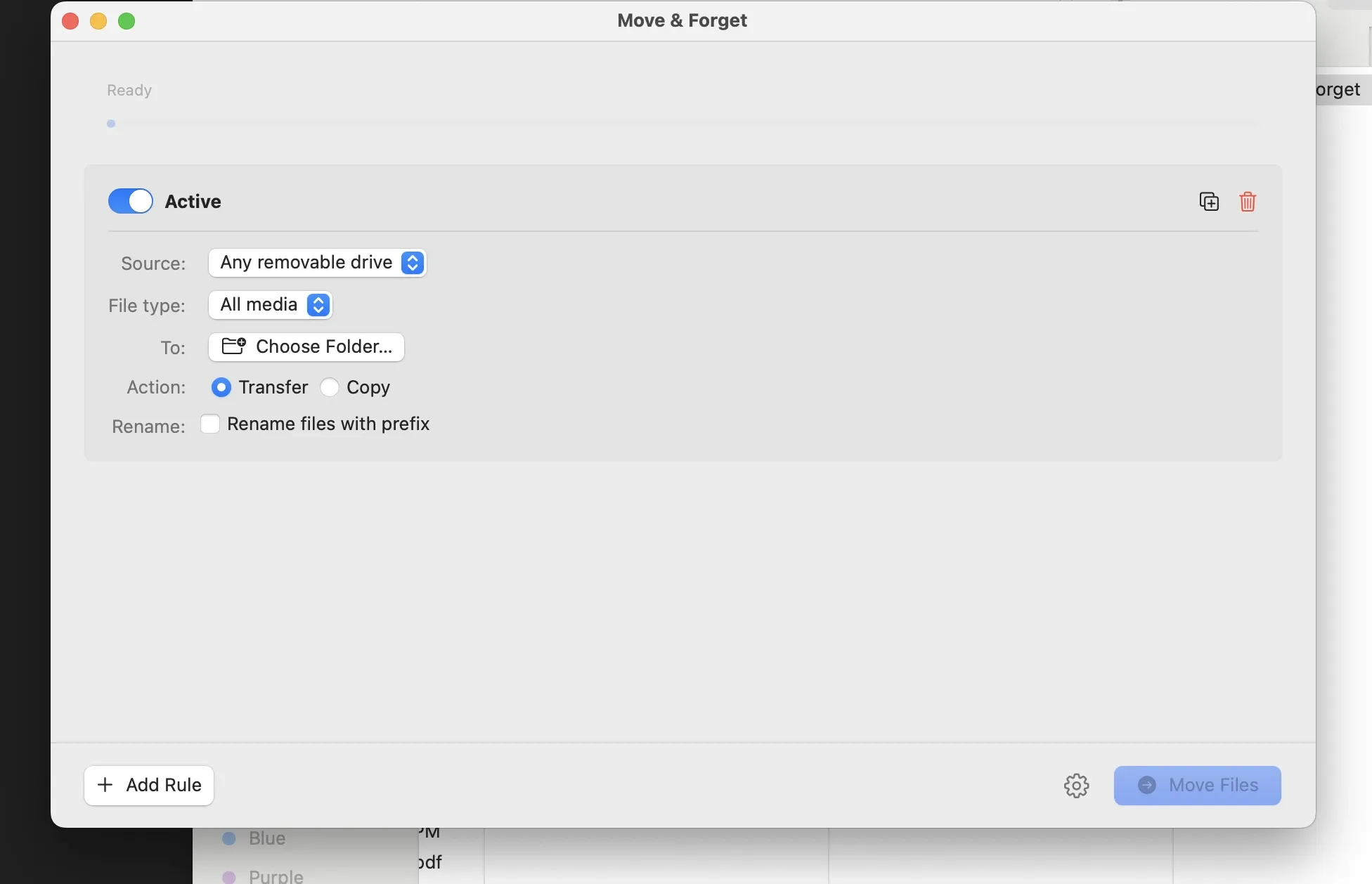
Section titled “What this section does”The main window is your operational workspace. It lets you manage rules, launch a run, monitor active progress, and review the latest transfer outcome.
Window structure
Section titled “Window structure”- Progress strip (visible only during an active transfer)
- Transfer result banner (shown after each run, dismissible)
- Error banner (shown when a run cannot start, dismissible)
- Rules list (one card per rule)
- Bottom bar: Add Rule, Settings gear, Move Files
Window states
Section titled “Window states”- Default (idle): Rules are visible and no banner is shown.
- Transferring: Progress strip is visible and Move Files is disabled.
- Completed: Progress strip hides and a result banner appears.
- Cancelled: A cancelled banner appears with completed file count.
- Cannot start: An orange error banner explains blocking validation issues.
- First launch: Terms sheet must be accepted before any transfer can run.
Progress strip
Section titled “Progress strip”- Shows percent, status text, processed/total count, and stop action.
- Shows
...scanning feedback before total file count is known. - Switches to a determinate progress bar once scan totals are available.
Result banner
Section titled “Result banner”- Appears after completed, completed-with-issues, and cancelled runs.
- Includes summary line, then
Error:andNotice:detail lines. - Dismiss action clears the current summary until the next run.
Bottom bar actions
Section titled “Bottom bar actions”- Add Rule: Appends a default rule at the end of the list.
- Settings gear: Opens the Settings modal sheet.
- Move Files: Starts transfer (
Command + Returnshortcut).
Cannot-start conditions
Section titled “Cannot-start conditions”- No rules are enabled.
- At least one enabled rule has no destination folder.
- At least one enabled selected-drive or selected-folder rule has no source chosen.
- Confirm enabled rules and destination folders before pressing Move Files.
- Keep Transfer mode for verified move workflows; use Copy mode for cautious first runs.
Why is Move Files disabled?
Section titled “Why is Move Files disabled?”Move Files is disabled while a run is active or when run-time validation fails.
Why do I still see notices after a successful run?
Section titled “Why do I still see notices after a successful run?”Notices are informational, for example when a drive has no files matching a rule.
Related guides
Section titled “Related guides”Need help?
Section titled “Need help?”For setup support, contact rockstarui.com/contact.